The XTac UMI Backpack
The XTac UMI Backpack is the Backpack Kit's collection unit, worn by the operator: the grippers and headset plug straight in, a tablet browser is the console, and collection, playback and export all happen on the backpack.
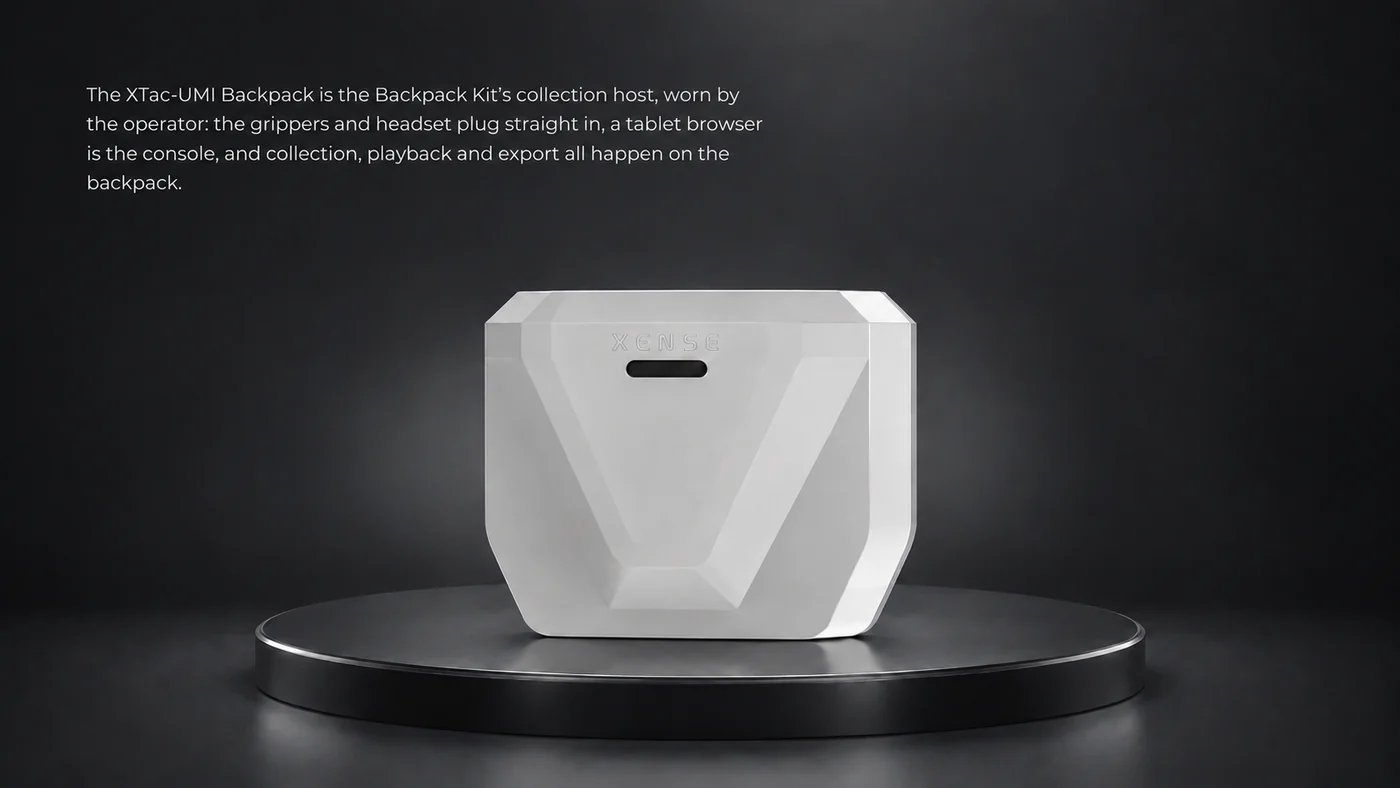
Quickstart Compare the two editions
What it is
No computer and no site network needed; it is ready to collect once it boots.
-
Records
Visuotactile, wrist fisheye, opening and IMU from both grippers, headset and tracker poses, optional headset views
-
Stores
One MCAP raw recording per demonstration, organized by project and task
-
Delivers
Export as a LeRobot dataset or MCAP; download, or upload to ModelScope in one click
Connectors
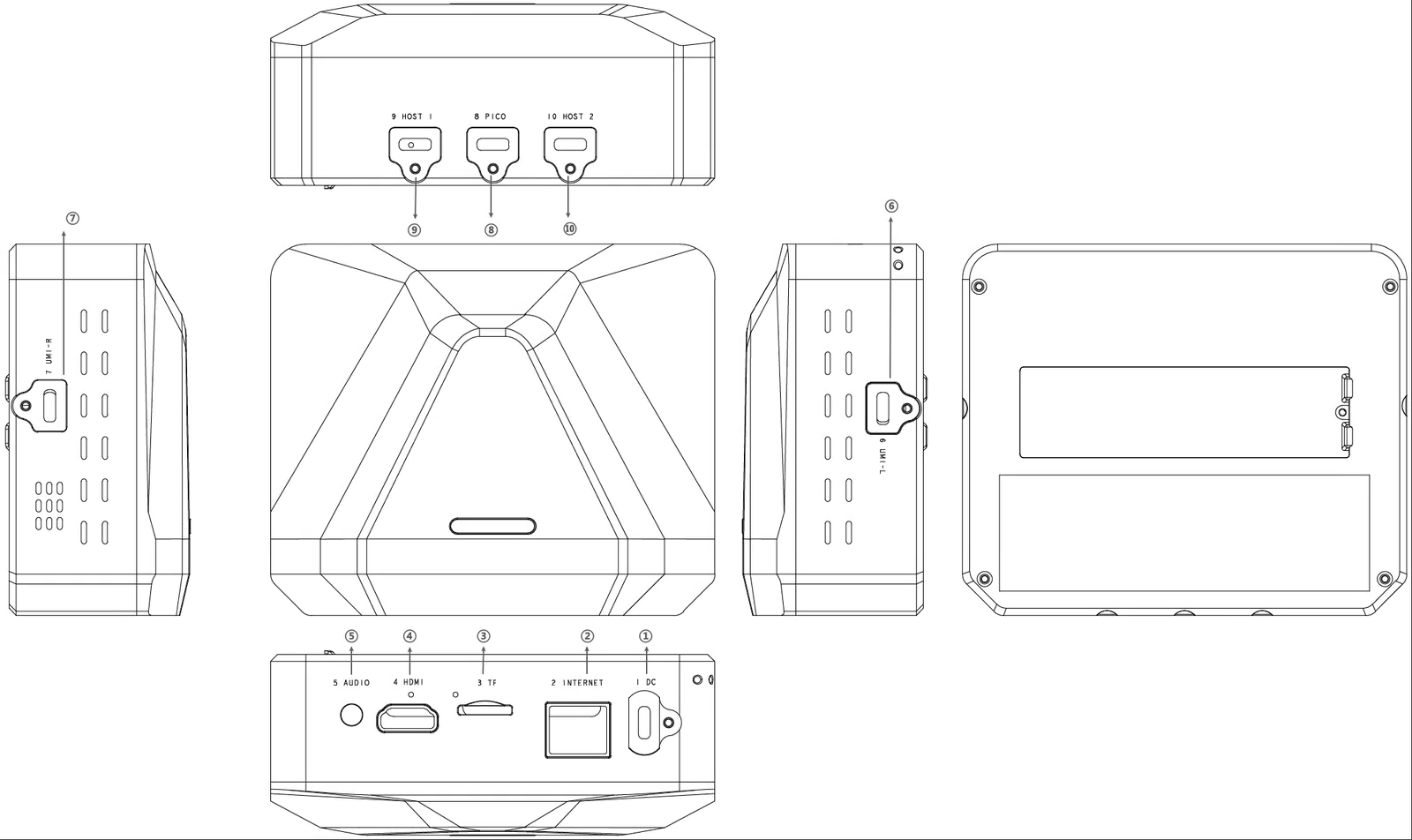
| No. | Connector | Location | What it is for |
|---|---|---|---|
| ① | DC IN |
Rear panel | 12V power input: the supplied 12V 3A adapter, or the power bank through its power cable |
| ② | Ethernet | Rear panel | Wired networking, DHCP from the factory, static IP settable on the System page |
| ③ | TF | Rear panel | TF card slot, not used for day-to-day collection |
| ④ | HDMI |
Rear panel | Video out, not used for day-to-day collection |
| ⑤ | Headphone | Rear panel | 3.5mm headphone jack |
| ⑥ | UMI-L |
Left side | Left leader gripper, Type-C locking cable, which also powers the gripper |
| ⑦ | UMI-R |
Right side | Right leader gripper, Type-C locking cable, which also powers the gripper |
| ⑧ | PICO |
Front panel | Pico4 Ultra Enterprise headset, Type-C. In XR choose "XTac" as the connection, then tap "Connect" |
| ⑨ ⑩ | HOST1 / HOST2 |
Front panel | USB host ports, for a tablet or other devices |
Which cables to use and in what order is in Unboxing, cabling and power.
Waist belt
The waist belt holds the backpack and the power bank and keeps the cables out of the operator's way.
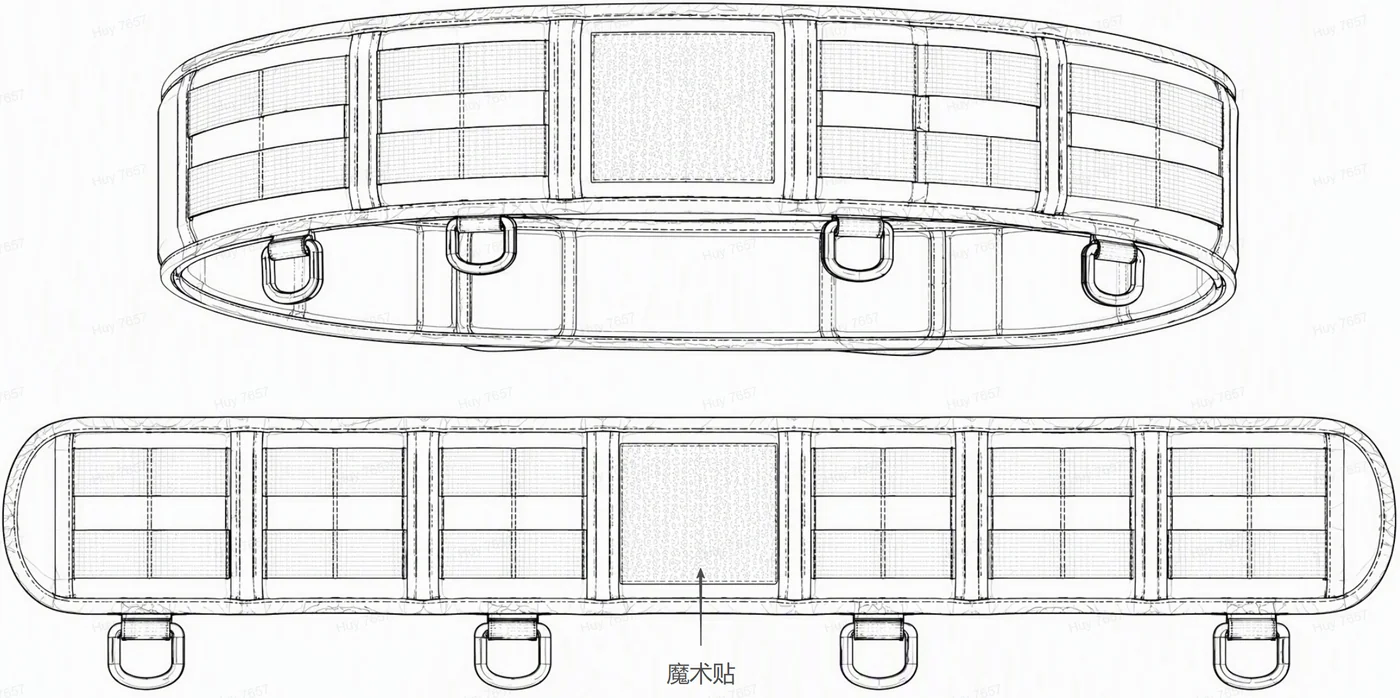
- Before putting it on, check that the backpack, the power bank and the belt are secure.
- Leave slack in the cables so turning, bending or raising an arm does not pull on a connector.
- Do not cover the vents of the backpack or the power bank.
The body label
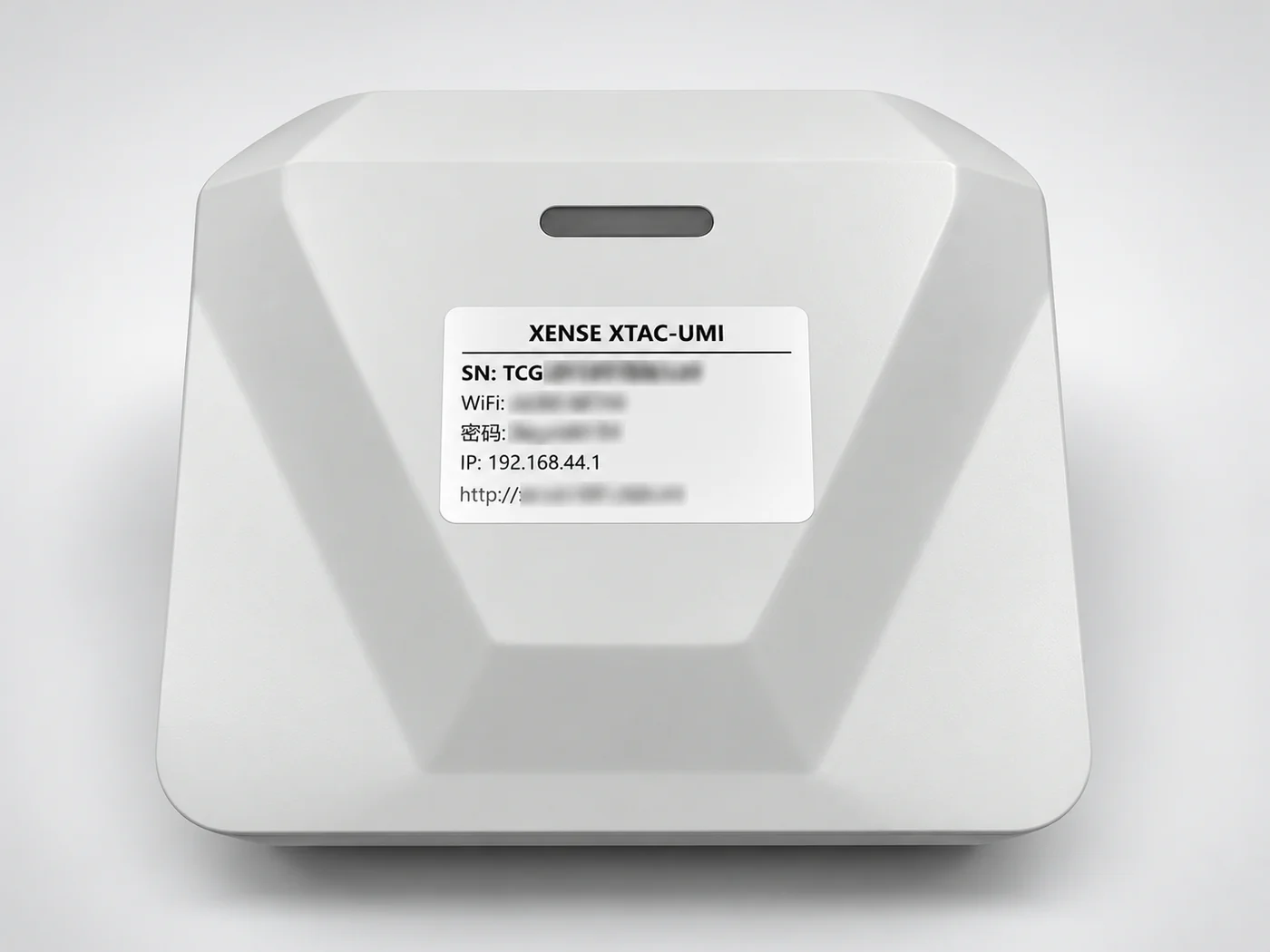
| Field | What it is for |
|---|---|
| SN | The device serial number |
| Wi-Fi / password | The backpack hotspot's name and password |
| IP / device name | Open in a browser once connected to reach the console |
Identify a unit by its SN and hotspot name, not by IP. How to connect is in Network and console access.
The console
Open the backpack's address in a browser to reach the console; it has four pages:
| Page | What it does |
|---|---|
| Live monitoring | Every view, pose and opening on one screen; pick a project and task, start / stop recording |
| Project | Manage recordings: playback, delete, export, archive |
| Playback | Replay any recording online |
| System | Device information, gripper calibration and firmware, capture settings, uploads, network, updates, interface language |
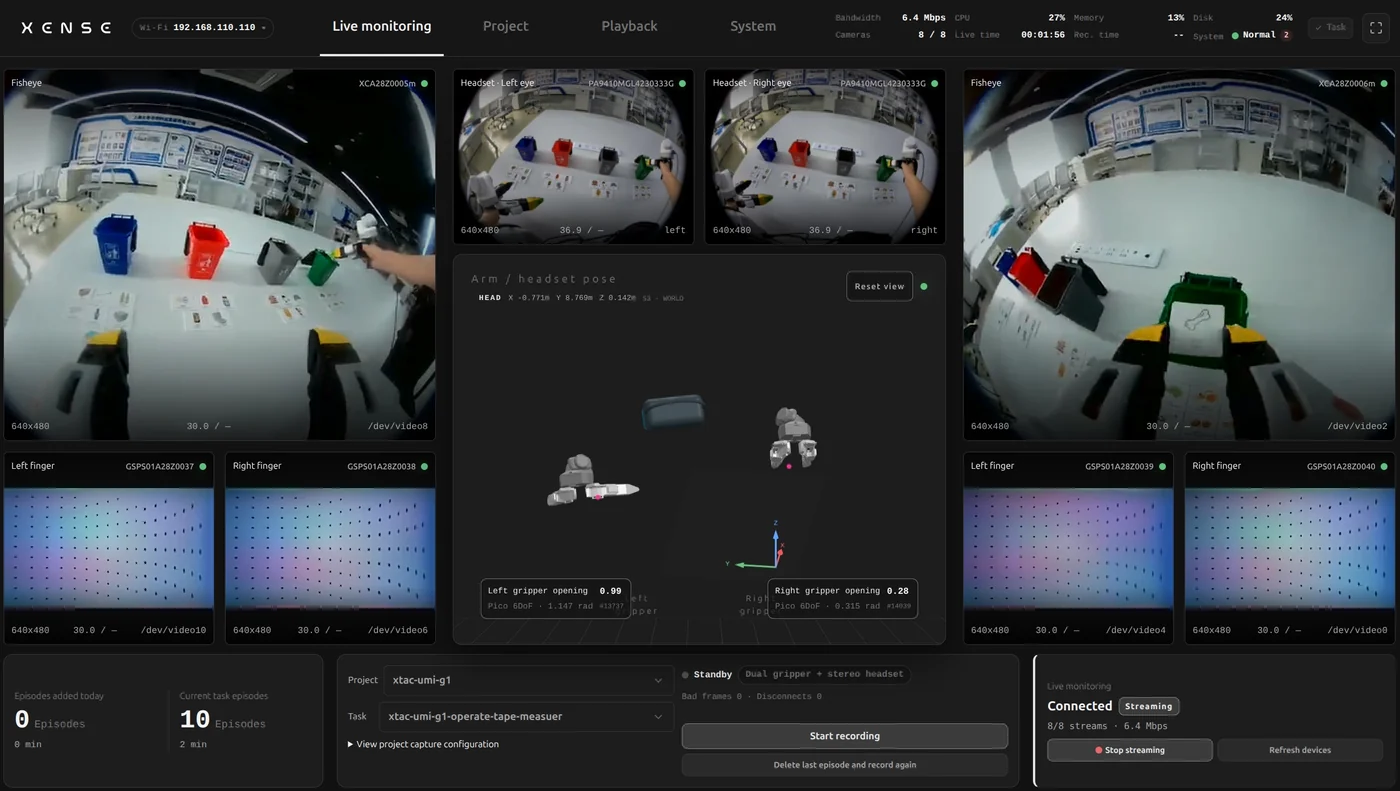
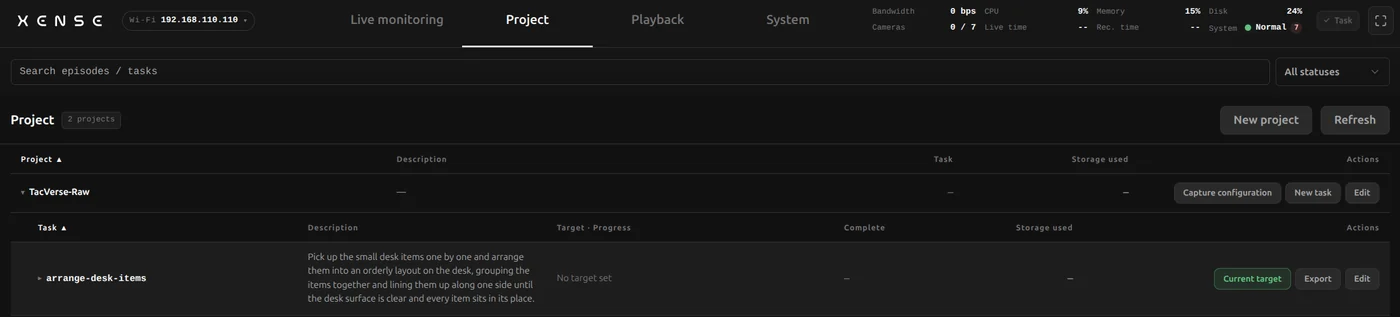
Recording is mainly driven by the gripper buttons: long-press right to start, long-press left to stop, with no browser needed, plus LED and voice feedback; see Gripper buttons, LEDs and voice.
Capture modes
The capture mode is chosen when you create a project and cannot be changed afterwards; create a new project to switch. Every mode needs the headset for poses.
| Mode | Cameras |
|---|---|
| Dual gripper | 6 |
| Dual gripper + stereo headset | 8 |
| Dual gripper + headset right eye | 7 |
Data and export
- Raw recordings: one MCAP file per demonstration, on the backpack's NVMe data disk.
- Export per task: LeRobotDataset v3 or MCAP, or both; data integrity is checked before export.
- Getting it out: download an archive, or upload to ModelScope, S3, FTP / FTPS or NFS.
- Size: an exported LeRobot dataset takes about 0.5GB per hour.
Details are in Projects, export and upload.
Upgrading
- Collection software: import an update package in System → System update; you can roll back to the previous version, see Upgrades and OTA.
- Gripper firmware: flash it in System → Gripper configuration, see Gripper firmware.
Current component versions are in Backpack Kit · Versions.
Known limitations
- Playback and live preview cannot run at the same time.
- The backpack only joins 5GHz Wi-Fi; with 2.4GHz only on site, use a cable or the backpack hotspot.
- Some phones and Windows cannot open the
.localdevice name; use the IP address instead.