Live monitoring and recording
This page covers the "Live monitoring" page of the XTac UMI Collector console (below, "the console"). Gripper button gestures, LED patterns and voice announcement wording are in Gripper buttons, LEDs and voice; this page only links to them.
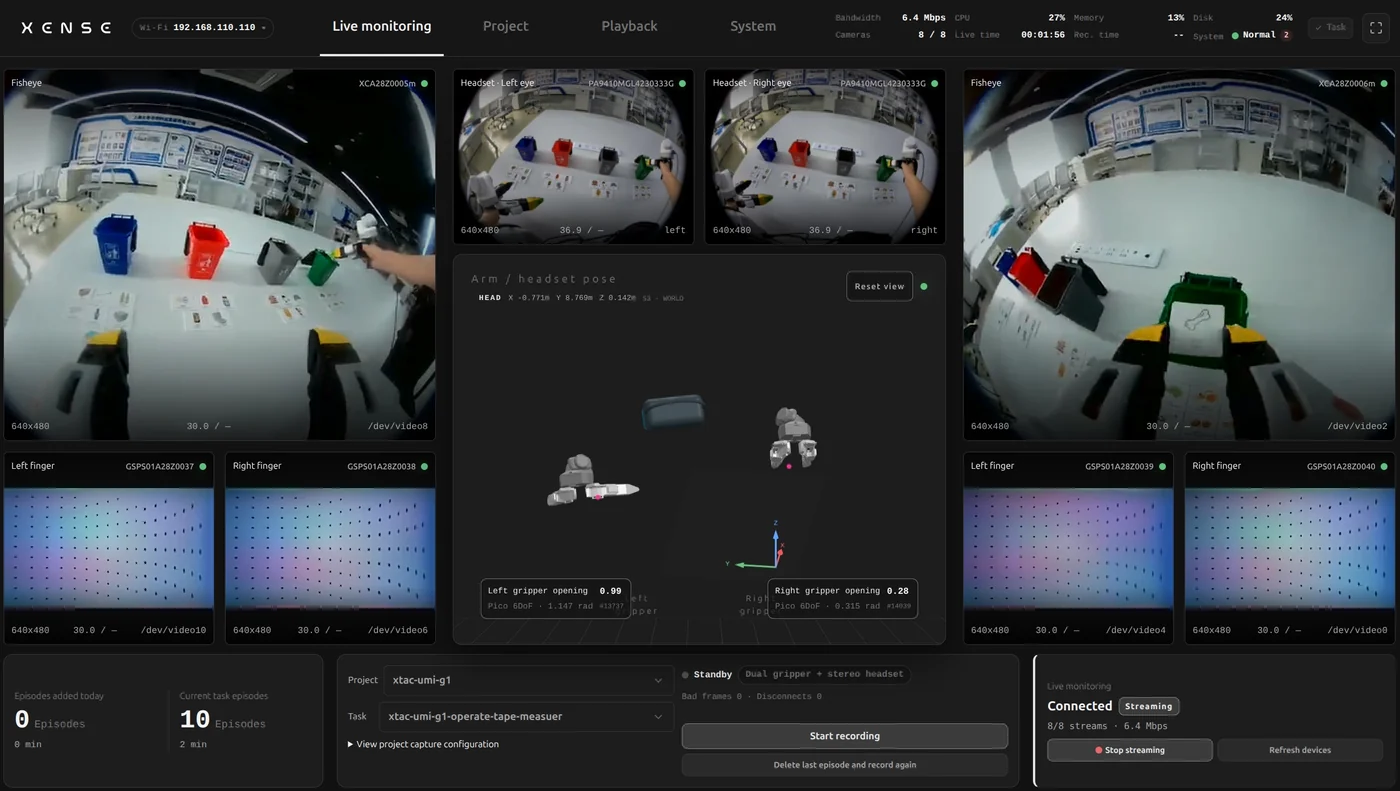
- Top bar: device status (bandwidth, CPU, memory, disk, cameras, live time, recording time, system).
- Middle: the side columns each hold one gripper's fisheye view plus its left-finger / right-finger visuotactile feeds; the center column holds the headset's stereo pair, the "Arm / headset pose" 3D view (with a trail of about 1.5 seconds behind each end effector) and, below it, the left and right gripper opening-angle cards.
- Bottom: from the left, the "Current task episodes" card, the project / task selectors with the record button, and the "Live monitoring" connection card ("Stop streaming", "Refresh devices").
Confirm in the console before recording
Check each item before recording, and do not start if any is wrong:
| What to look at | What you want | When it is wrong |
|---|---|---|
| Every view | The top bar's "Cameras" count matches the capture mode (6 / 6 for "Dual gripper", 8 / 8 for "Dual gripper + stereo headset", 7 / 7 for "Dual gripper + headset right eye") and every tile has an image; fisheye views are sharp; the visuotactile feed is the geometrically rectified image with no difference overlay, and the contact area changes as you press | A blurred fisheye usually means the focus ring was knocked; turn it back to sharp before recording. If the count is wrong, check System → Capture settings; only if one feed stays black for long, click "Refresh devices" |
| Headset pose and tracker state | Move a gripper and the headset and the 3D model follows; the indicator at the top right of the pose card is green | "Pose online" but the model does not move: the tracker app in the Pico usually never really started; hold the tracker's power button to reactivate it and restart the app on the Pico. Light turns yellow with a prompt: a tracker has left the headset's view (orientation only, no position); bring it back into view. Check left / right by serial number, odd left and even right, see Reading a tracker SN |
| Both grippers' opening | The two cards below the pose view show radians, degrees and a normalized percentage: about 100% fully open, about 0% closed (about 0.02rad; a little more force reaches 0) | If fully open will not reach 100% or closing will not return to 0, recalibrate at System → Gripper configuration |
| Free disk space | The top bar's "Disk" usage is below 80% (recording disk, measured on the device); hovering shows the mount point, used, total and available space | At 80% recording is refused; export and archive the data you have, or delete recordings you do not need |
| Recording state | The status line at the top right of the project / task card reads "Standby", followed by the capture-mode badge (for example "Dual gripper + stereo headset"); "Start recording" is clickable | When the badge says "Pico not ready" and the button is gray, the reason is below the status line: "Pico not ready" and "Tracker not ready" are separate and can appear together, each followed by the specific cause (for example disconnected or timed out, pose data missing or timed out, left-eye / right-eye video missing or timed out, clock synchronization missing or timed out, or the tracker out of view or stationary for over 5 seconds); a missing project / task is stated too. Deal with the reason first |
- The preview is encoded once by the backpack's hardware encoder and sent to every device with the console open; headset and visuotactile previews are half resolution, so looking coarser than the recording is normal. Recording bypasses the preview path: the MCAP holds the cameras' raw MJPEG frames at full resolution.
- On a weak tablet network, only the dropped feed shows "Network unstable; waiting to recover" and reconnects automatically; the others are unaffected and there is no need to refresh.
Picking a project and task
Recordings sit under a "project → task" hierarchy. The two drop-downs at the bottom of the Live monitoring page pick the project and task; their last entries, "New project…" and "New task…", create one on the spot. You can also create them on the Project page and set a task as the current target there.
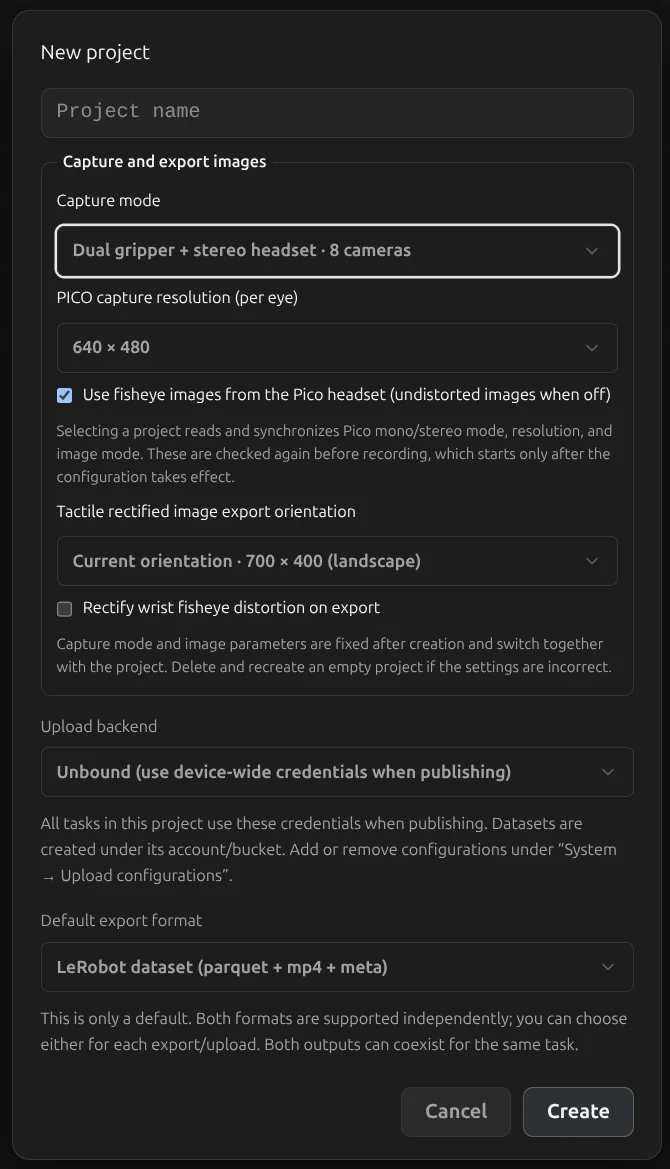
A new project fixes its capture config at creation. Once created it is frozen; for different settings, create a new project. The System page only displays it; what each item means is in Current project capture configuration.
- Capture mode: one of "Dual gripper", "Dual gripper + stereo headset", "Dual gripper + headset right eye".
- PICO resolution per eye: 640 × 480 or 1024 × 768, only for modes that record headset video.
- PICO image source: fisheye or undistorted images.
- Headset mount: On head / Around neck, only for modes that record headset video; On head by default. Around the neck the headset tracks the chest, and the starting-pose check uses the neck range. A dataset can only have one mount.
- Export quality: High quality / Standard / Compact, for all video exports in the project; High quality produces larger files, Compact smaller ones.
- Tactile rectified image export orientation: 700 × 400 landscape by default, or a further 90° counterclockwise for 400 × 700.
- Wrist fisheye: whether to rectify its distortion on export.
- Upload backend: you can bind one configured at System → Upload configurations as the project's default for uploads; without a binding you pick one at upload time.
The fields for a new task:
| Field | What to enter |
|---|---|
| Task name | A short label using lowercase letters, digits and hyphens only, for example pick-chips |
| Task instruction / prompt (required) | The LeRobot language instruction, written as complete natural language, for example open the lid of the container on the table, take out the chips, place them into the box, and close the lid |
| Target episode count | How many episodes this task should collect; may be left blank |
| Target duration (minutes) | How long this task should collect for; may be left blank |
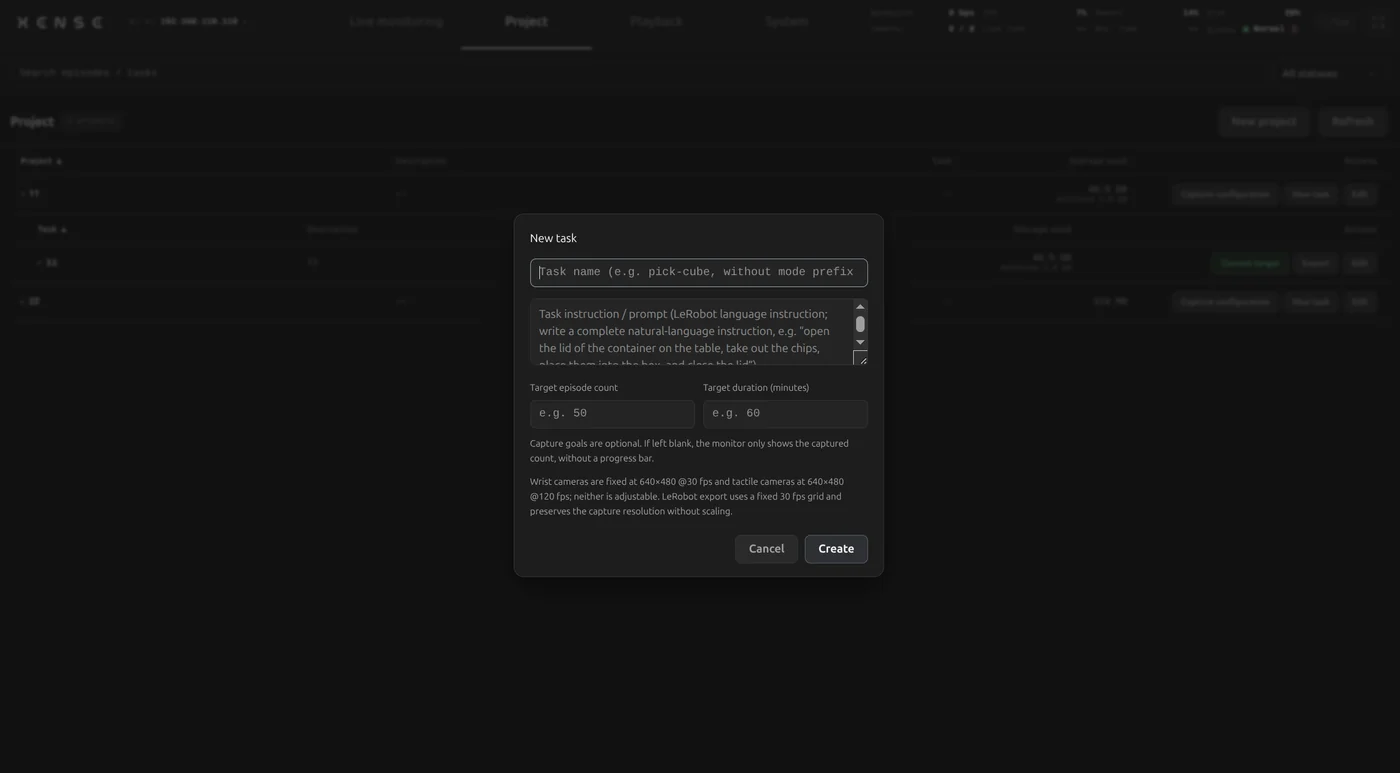
- With targets blank, only the count collected so far is shown, with no progress bar.
- The target count is a hard gate: once met, recording is refused, from both the console button and the gripper buttons.
- Counted cumulatively: "Ready" and "Uploaded" episodes both count; archiving only deletes local files without changing the state, so neither uploading nor archiving frees up room, and progress never goes backwards. Deleted episodes do not count; "Delete last episode and record again" leaves the net count unchanged.
- To keep collecting once met: raise the target count, or delete recordings that should not count.
- The "Current task episodes" card: bottom left, showing the count, duration and progress against the target on the same basis; starting or stopping from the gripper buttons or another tablet updates it and the Project page list immediately.
Camera parameters and rectification:
- Wrist cameras and tactile sensors: fixed at 640×480 @ 30fps and 640×480 @ 120fps respectively, not adjustable.
- All rectification happens at export: tactile is rectified geometrically in the chosen orientation; wrist fisheye rectification, if on, uses the calibration parameters frozen into the recording when it started.
- LeRobot export: fixed at 30fps.
Recording
- Gripper buttons (day to day): long-press the right gripper to start and the left to stop, handled by a state machine on the device with no browser needed; which gripper does what and the timings are fixed fleet-wide and cannot be changed on site. Gestures, LEDs and how to confirm a deletion are in Buttons.
- Console buttons: "Start recording / Stop recording" do the same, for someone not holding a gripper; to bind browser shortcuts see System → Capture settings › Recording shortcut.
On-site feedback: LEDs and voice
With both hands on the grippers and eyes on the scene, you rely on two complementary forms of feedback:
- LEDs: the gripper indicator distinguishes states by steady / breathing / blinking / pulse / rapid flashing, and needs a glance up; meanings are in LEDs.
-
Voice announcements: the sentences are in Voice prompts.
- Plays through the headset by default, falling back to the backpack's speaker when the headset is disconnected or unsupported; no tablet needed, independent of the browser.
- Six prompts: recording starts, an episode finishes (prompting you to reset the scene and prepare the next one), a serious problem during recording, and a gripper / the headset / a tracker dropping out (three prompts, each needing a different check).
- Plus a subtask marker tone.
-
Fixed and adjustable: wording and timing are fixed and cannot be changed on site, keeping a batch of devices identical; you can adjust the switch, the volume (a 0–100 slider) and the audio language (Chinese / English), with a per-line preview next to the switch that shows where the sound played and why. See System → Capture settings.
- Audio language: follows the interface language when the page loads or the interface language changes; a language chosen separately applies until the page is reloaded or the interface language changes.
Recording gates
Whether started from a gripper button or the console, the device checks these in order and stops at the first failure:
- Disk usage below 80%;
- A project and task are selected, and the task's cumulative count has not reached its target;
- The gripper MCUs are online;
- Pico ready: the headset is connected with pose and clock sync working; in modes that record headset video, the selected eye's video must be working too;
- Tracker ready: the trackers are connected and "tracking normally within the field of view"; recording is refused if a tracker has been still for more than 5 seconds or has left the field of view (brief stillness mid-recording does not interrupt and is not counted against quality; the position stays accurate while still);
- The headset's video parameters match the project: after you select a project or the headset reconnects, the device re-reads mono / stereo, resolution and image source automatically, then checks again just before recording. If no confirmation arrives, the check times out, or the headset disconnected or its parameters changed meanwhile, recording is refused, and the message says which;
- The headset's video clock is sane: if one eye's video time runs more than 1 second ahead of the time it was received, you get "headset … eye video time sync abnormal" and recording is refused. The problem is the headset app's camera clock versus its sync clock, not the backpack.
- Coordinate reset: the device has the headset reset its world frame and waits for it to finish; on failure you get "Failed to reset Pico coordinates before recording";
- Trackers not swapped: if the trackers' actual positions are opposite to their left / right gripper bindings, or left and right cannot be told apart yet, recording is refused;
-
Hands in the starting range (modes that record headset video), see Starting-pose check below.
-
When refused: an "Unable to start recording" dialog states the reason (the same for a gripper-button start); away from the tablet, listen for the announcement and watch the LEDs.
- Message when the target is met: "Task '…' has reached its cumulative collection target (N/M); recording refused. To keep collecting, raise the task's target count or delete recordings that should not count towards the target."
Starting-pose check
Every episode in a dataset should start from the same posture, which makes it easier to learn from. In modes that record headset video ("Dual gripper + headset stereo", "Dual gripper + headset right eye"), the device checks before recording that both hands are in the starting range in front of and below the body, and refuses to record otherwise. The console button, gripper buttons and "Delete last and re-record" all go through this check.
- Reference frame: the headset at the moment recording starts is the origin, X points forward (the headset's heading, horizontal only), Y left, Z up, in metres. It is the same frame the exported data uses, see Origin of exported data.
- What is checked: the TCP position of each gripper against its own box (a lower and upper limit on each axis); the right hand's box is the left hand's mirrored left-to-right.
- How it decides: it waits up to 1.5 seconds and needs several consecutive samples inside the box (spanning about 3 frames, 100 ms), so a single noisy sample neither passes nor fails a start.
- Range by mount: an "On head" project uses the head range, "Around neck" the neck range. Around the neck the origin is at the chest, so the hands sit higher relative to it (by about 5–20 cm, depending on the operator); the neck range is therefore wider up and down.
The current reference ranges on the device are below. They start from measured starting postures, with each edge pushed outward to a whole 10 cm to fit operators of different heights and habits; only the inner left-right edge stays at 5 cm, so the hands are always at least 10 cm apart. Later versions may fine-tune them, so go by what the device reports.
| Mount | Forward (X) | Left hand leftward (Y), negated for the right hand | Up (Z) |
|---|---|---|---|
| On head | 0.10 to 0.50 | 0.05 to 0.40 | −0.70 to −0.30 |
| Around neck | 0.10 to 0.50 | 0.05 to 0.50 | −0.70 to −0.10 |
With the head range, the hands sit roughly 10–50 cm in front of the headset, 5–40 cm either side of the body's midline and 30–70 cm below the headset: arms hanging naturally, forearms forward, hands apart. The neck range is looser up and down; it mainly catches hands hanging too low or raised to the face.
The two refusal messages:
- Out of range: "Your hands are outside the starting pose range, so recording was blocked: left hand 5 cm too high, right hand 2 cm too far left. Adjust as indicated, hold still, and retry." After the colon, each item names a hand, the direction it is off (too high / too low / too far left / right / forward / back) and by how many centimetres; move that far the opposite way to be back in range.
- No pose: "Could not get valid headset and tracker poses at the same time, so the starting hand pose cannot be confirmed. Recording was blocked." Check that the headset and trackers are tracking first.
Only the moment recording starts is checked
Recording begins only after the check passes; how you move afterwards is not limited. Exports re-run the check on each episode's first 3 frames: moving sharply right after the start can put a few episodes out of range, and the export still completes, just with a notice listing those episodes.
While recording
- Status line: changes to "Recording" with a running timer, and the capture-mode badge stays; the top bar's "Rec. time" runs in step.
- Red counters: the recording card accumulates "Bad frames N" (delivered but incomplete), "Disconnects N" (a device-level disconnection; frames never arrived) and "Tracker out of view X s" (with ×N when more than once). With every camera green, out-of-view is the only clue; when you see it, consider stopping and re-recording.
- You cannot delete episodes or change the task while recording; the capture mode can never be switched.
Headset disconnects while recording
- Trigger: the cable in the PICO port is pulled or loose, the headset disconnects, or the pose or required headset video has not updated for about 3 seconds.
- What the device does: stops recording at once, finalizes safely and marks it failed.
- Console notice: "Pico issue: recording interrupted", stating the kind of disconnect (for example "Pico disconnected", "Pico tracker disconnected", "Pico pose data has not updated for 3 seconds"). One incident shows it once, and refreshing or reopening the page does not repeat it; the mobile view shows the failure reason too.
- Voice and LED: "Pico connection failed." or "Tracker connection failed.", and the gripper LED turns yellow as for a failed recording.
- The failed recording: kept for diagnosis, not counted towards the cumulative count, and left out of normal export and upload.
- No automatic resume after recovery: when the data is back and finalizing is done, the yellow LED clears with "Pico has recovered. You can start a new recording when the device is ready."; start a new recording yourself.
After stopping
Long-press the left gripper or click "Stop recording": the episode is saved into the current task, and the LED flashes white once and returns to standby. Numbering is in the Project page.
On stopping, an automatic quality check marks the episode "data suspect" if any of these hits (the gripper pulses yellow and the "Quality" column on the Project page carries a mark; the episode is saved either way):
- The recording is shorter than 1s (almost always a misfire);
- Any camera channel recorded not one frame, or the whole episode received no video frames at all;
- Tracking was lost for more than 20% of the episode's duration (suspected to have left the field of view);
- The tactile rectification recipe is missing (this episode's LeRobot export is certain to fail).
For a questionable episode, delete it on the spot and record it again.
Episode states
Project page rows and mobile cards show four states:
| State | What it means | What you can still do |
|---|---|---|
| Ready | Just recorded; the raw file is on the device and has never been uploaded | Playback, export (either format), upload, archive, delete |
| Uploaded | Uploaded in at least one format, with the raw file still on the device | The same; plus exporting in the other format |
| Archived | Only the catalog record is left; the raw file was cleared at archive time | Only the record and deletion; the replay entry point is grayed out and no format can be exported |
| Discarded | The recording failed part-way (for example a headset disconnect, a gripper dropout, or a power loss / system restart during recording); the episode row states the failure reason; the data size reflects the files actually left, kept for diagnosis | Delete |
- "Uploaded" says whether a remote copy exists and "archived" whether the local file is still there, in two separate columns.
- Local files: an upload keeps them by default; to delete, tick auto-archive before uploading, or archive by hand later.
Deleting the previous episode
- Buttons: double-click the left gripper to enter delete confirmation (purple blinking, 5-second timeout), then double-click again to delete; gestures are in Buttons.
- Console: "Delete last episode and record again" deletes the current task's most recent episode and immediately starts recording, with no second confirmation; unavailable while recording.
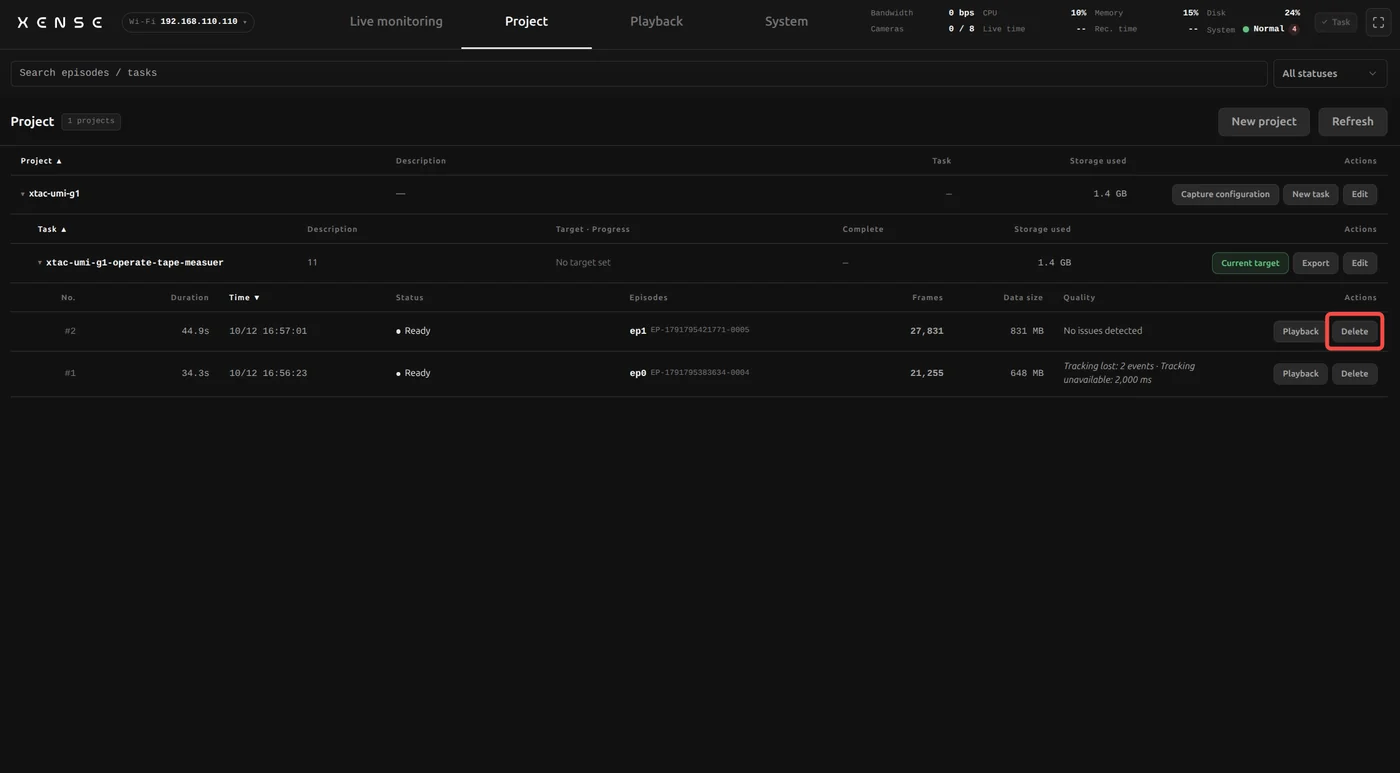
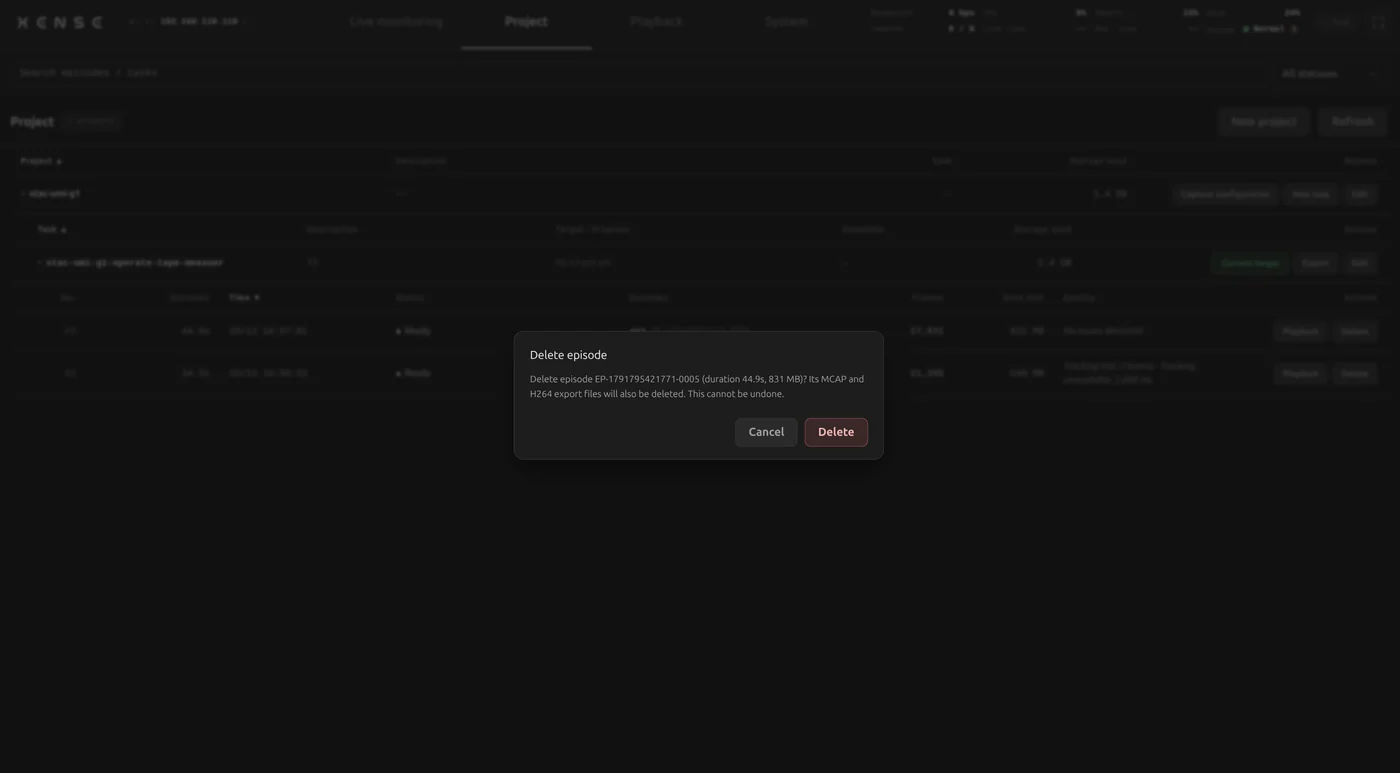
- Earlier episodes: click "Delete" on its row in the Project page. The confirmation lists the number, duration and size, and deletes its MCAP and H264 export files with it. This cannot be undone.