Quickstart
This page takes you from powering on to your first exported dataset; follow the steps in order.
Before you start
- Headset and trackers: the Pico system is updated, XTac UMI XR is installed and both trackers are paired; see Pico4 headset and tracker setup.
- Gripper calibration: the leader grippers are calibrated; see console → System → Gripper.
1. Wiring and power
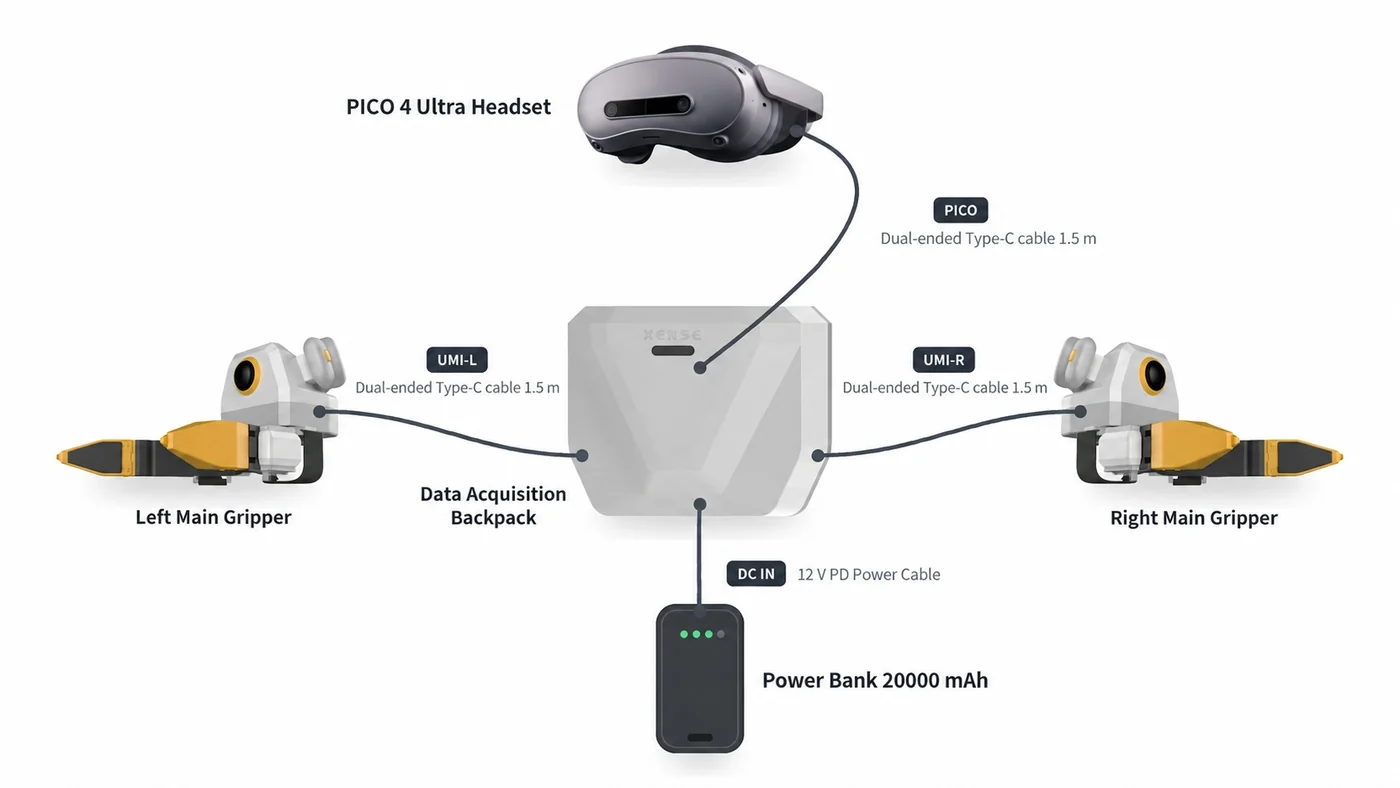
- Connect the leader grippers: plug the two leader grippers into the backpack's
UMI-LandUMI-Rports. - Connect the headset: connect the headset to the backpack's
PICOport with the Pico → Pack cable. - Power the backpack:
- Fixed station: use the power adapter.
- Mobile collection: use the power bank.
2. Open the console
- Connect the tablet: cable the tablet to the backpack's
HOST1orHOST2port. - Wait for it to open: once connected, the console opens on the tablet automatically.
If the console does not open, see Troubleshooting.
3. Connect the headset
- Put on the headset, facing the work area.
- Start the app: open XTac UMI XR.
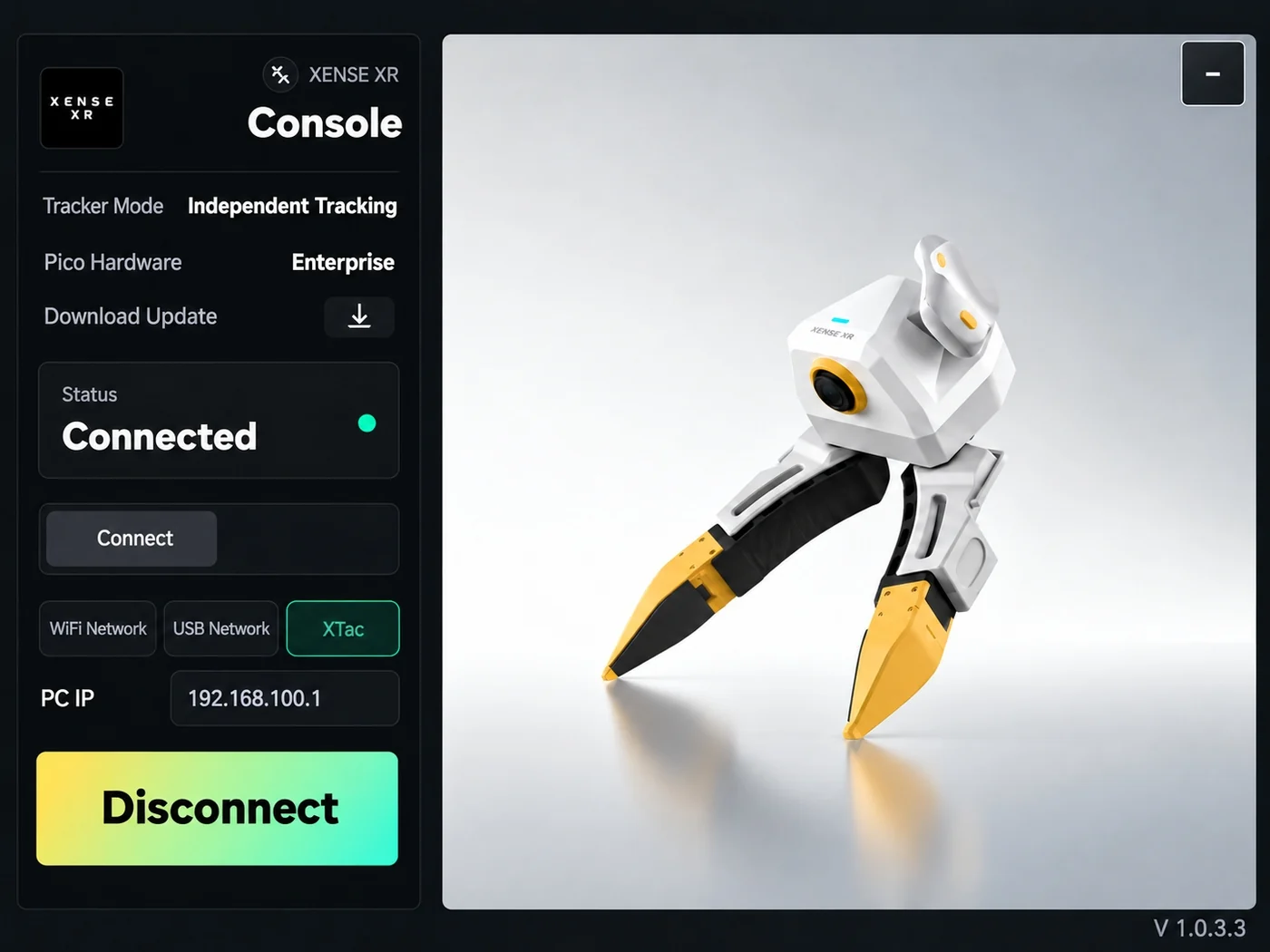
- Network settings: choose "XTac" as the connection (selected by default on first launch; it connects to the backpack at
192.168.100.1). - Connect: tap "Connect"; you are done when Status shows "Connected".
Do not restart the XR app during collection
Restarting resets the world origin, so poses within one dataset stop lining up.
4. Pick a project and task
- Pick or create: at the bottom of the console's Live monitoring page, pick a project and a task; if there are none yet, choose "New project…" or "New task…".
- Fill in the settings:
- Capture mode: chosen when creating the project, for example "Dual gripper + stereo headset"; see capture mode.
- Task instruction: give the new task a clear natural-language instruction.
5. Check before recording
Before you hit record, confirm these three:
- Camera views: every camera shows an image and the fisheye views are sharp.
- Pose view: follows your hands in real time, with left and right not swapped.
- Gripper opening: follows the grippers as they open and close.
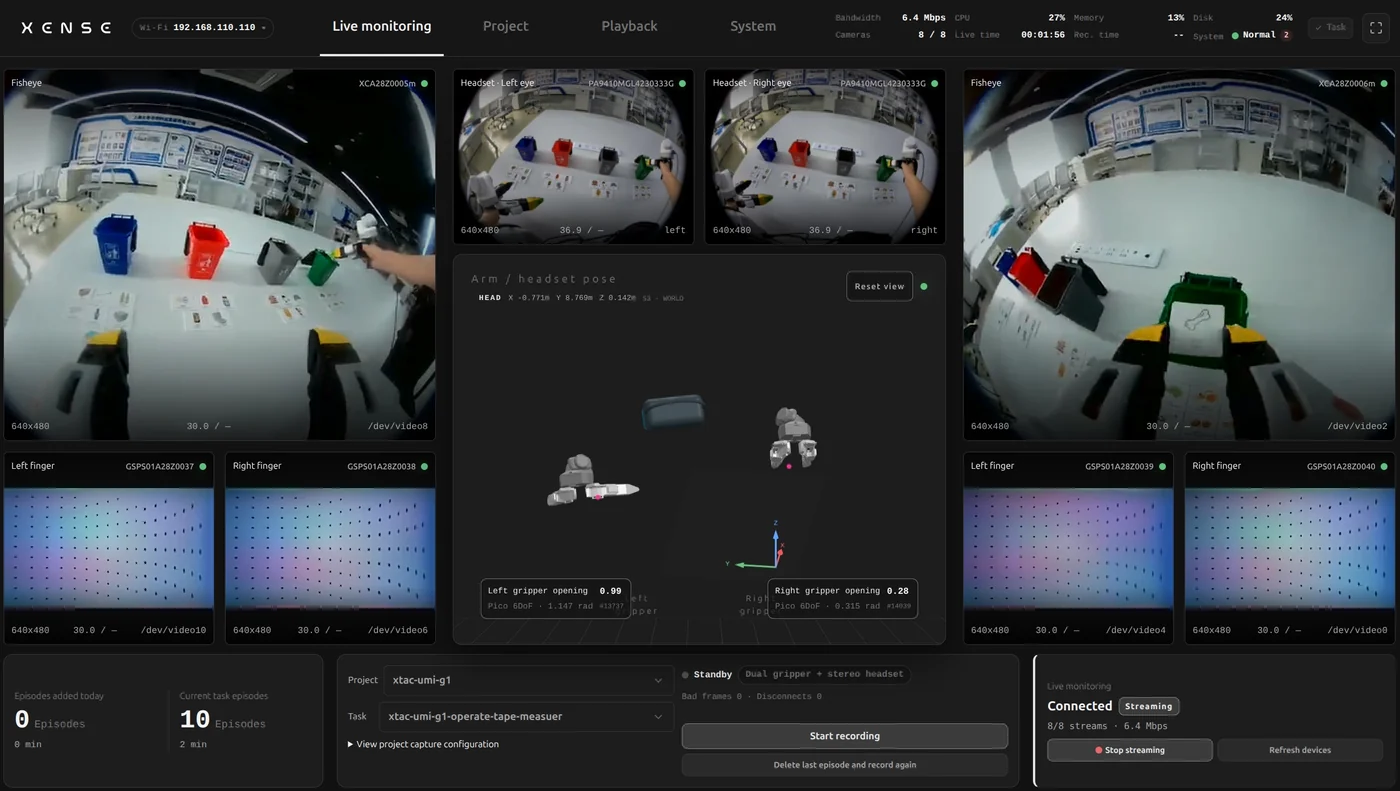
If the record button is unavailable, the page states why; see Recording gates.
6. Record with the gripper buttons
| Action | Button | Feedback |
|---|---|---|
| Start recording | Long-press right | LED breathes green |
| Stop recording | Long-press left | One white flash: saved |
| Delete the last episode | Double-click left, then double-click again to confirm | Purple LED |
All gestures, LED patterns and voice prompts are in Gripper buttons, LEDs and voice.
7. Export and upload
On the console's Project page, select a task and click Export:
- Precheck: data integrity is checked automatically; fix anything it reports.
- Destination:
- Download an archive to save locally.
- Upload to a backend configured beforehand (ModelScope, S3, FTP, NFS).
- Format: choose LeRobotDataset v3 or MCAP to suit your training pipeline.
Details are in Projects, export and upload.