Gripper buttons, LEDs and voice
On the Backpack Kit the gripper's two side buttons start, stop and delete recordings, the LED reports the current state, and the device gives voice announcements. The buttons and LED patterns are handled by XTac UMI Collector on the backpack, so no browser needs to be online. How to connect the grippers and tell left from right by serial number is in Gripper connection and serial numbers.
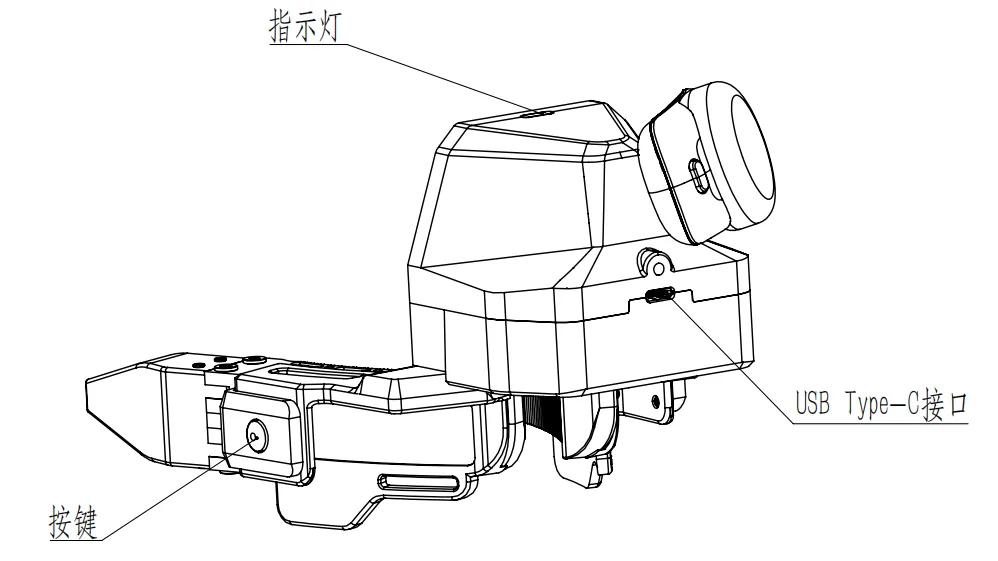
Buttons
The button state machine runs on the backpack and does not need the browser to be open. While recording, a double-click or a long-press of the right gripper is silently ignored (against accidental presses); with nothing to delete, a double-click is refused (rapid yellow flashing).
| Gesture | Action |
|---|---|
| Long-press the right gripper | Start recording |
| Long-press the left gripper | Stop recording |
| Double-click the left gripper | Enter delete confirmation (purple blink; exits by itself after 5s without input) |
| Double-click again while confirming | Delete the previous episode (solid purple for 3s; those 3s are also the cool-down, during which double-clicks are ignored) |
| Long-press the left gripper while confirming | Cancel the delete |
| Long-press the right gripper while confirming | Abandon the delete and start a new recording right away (the previous episode is kept) |
| Right gripper single press while recording | Place a subtask marker (a sub-step boundary) in this recording, with a tone |
Which gripper does what (right starts / left stops), the press timings and the LED patterns are fixed fleet-wide and cannot be changed on site, and the console offers no way to change them; the values in effect are shown on the console's System → Capture settings page (see System settings).
LEDs
| LED | Color and pattern | Meaning |
|---|---|---|
| Green · Steady | Standby: ready to record | |
| Green · Breathing | Recording (one bright-dark cycle per second) | |
| White · Flash | Saved (on for 0.4s) | |
| Yellow · Steady | Recording failed to start (on for 2s), or a fatal problem while recording (stays on) | |
| Yellow · Pulse | Suspect data: still recording, but that episode is questionable (on 0.2s, off 0.8s, 3 times) | |
| Yellow · Rapid flashing | Action refused, e.g. a double-click with nothing to delete (0.1s on/off, 3 times) | |
| Purple · Blinking | Delete confirmation, waiting for your second double-click; 0.3s on/off, cancels on timeout | |
| Purple · Steady | The 3-second cool-down just after deleting; double-clicks are ignored | |
| Red · Steady | System problem (e.g. a gripper dropped out, lit by the backpack) | |
| Red · Burst flashing | Gripper-side problem (lit by the gripper itself, not via the backpack) |
Recording is breathing green; red only ever means a fault. Rapid flashing and pulse are both yellow and differ only in rhythm: rapid flashing is dense, the pulse sparse. The console's System → Capture settings page renders this table as an animated legend that plays each shape and rhythm, so the two are easy to tell apart (see System settings).
Voice prompts
While collecting, both hands are on the grippers and your eyes on the scene, so the device announces key moments through the Pico headset, which you hear while wearing it, complementing the LEDs; no tablet is needed nearby and the browser plays no part. When the headset is not connected (for example the "Pico disconnected" announcement), the backpack's speaker plays it instead.
| When | What it says |
|---|---|
| Recording starts | "Recording started." |
| An episode finishes | "Recording complete. Please reset the scene." Reset the scene and get ready for the next one |
| A fatal problem while recording | "Recording failed." That episode is unusable |
| A gripper drops off while recording | "Gripper connection failed." |
| The headset drops off while recording | "Pico connection failed." |
| A tracker drops off while recording | "Tracker connection failed." The headset may still be connected, so check the tracker on your hand first |
| Right gripper single press to mark a subtask | Subtask marker tone (no speech) |
- Language: Chinese or English, following the console's interface language by default.
- Settings: on/off, language, volume and per-phrase preview are in System → Capture settings.
- The phrases and when they play are fixed and cannot be changed on site.