Backpack Kit: the XTac UMI Backpack
Welcome to the XTac UMI Backpack. This page is the getting-started guide for the Backpack Kit:
- First deployment: when you first receive the Backpack Kit, work through the first deployment checklist on this page.
- Daily collection: before each collection session, check the daily collection cheat sheet.
- Goal: by the end of this page you will be able to complete one full collection on your own, from powering on to exporting a dataset.
What the Backpack Kit is
- The backpack is the host: the collection software, XTac UMI Collector, runs on the backpack, and collection, replay and export all happen in its console. A tablet, phone or computer just opens the console in a browser; no separate collection PC is needed.
- One-person operation: the gripper buttons start and stop recording, and the LEDs and voice prompts report the state, so one person can run the whole collection.
- What is recorded: each episode is saved as one raw MCAP recording, capturing the left and right wrist fisheye views, four visuotactile feeds, the headset images, the 6-DoF poses of the headset and both trackers, and the gripper opening in sync.
- Export: export per task as a LeRobot dataset or MCAP, then download an archive or upload to ModelScope, S3, FTP or NFS.
- Suits: high-volume collection operations and collection teams. The software is delivered closed-source, with support for light customization.
The box contents are in Box contents and wiring; check them against Unboxing, cabling and power. To use your own x86 collection PC and build entirely on LeRobot, see the Developer Kit; the differences are in Product line and configuration comparison.
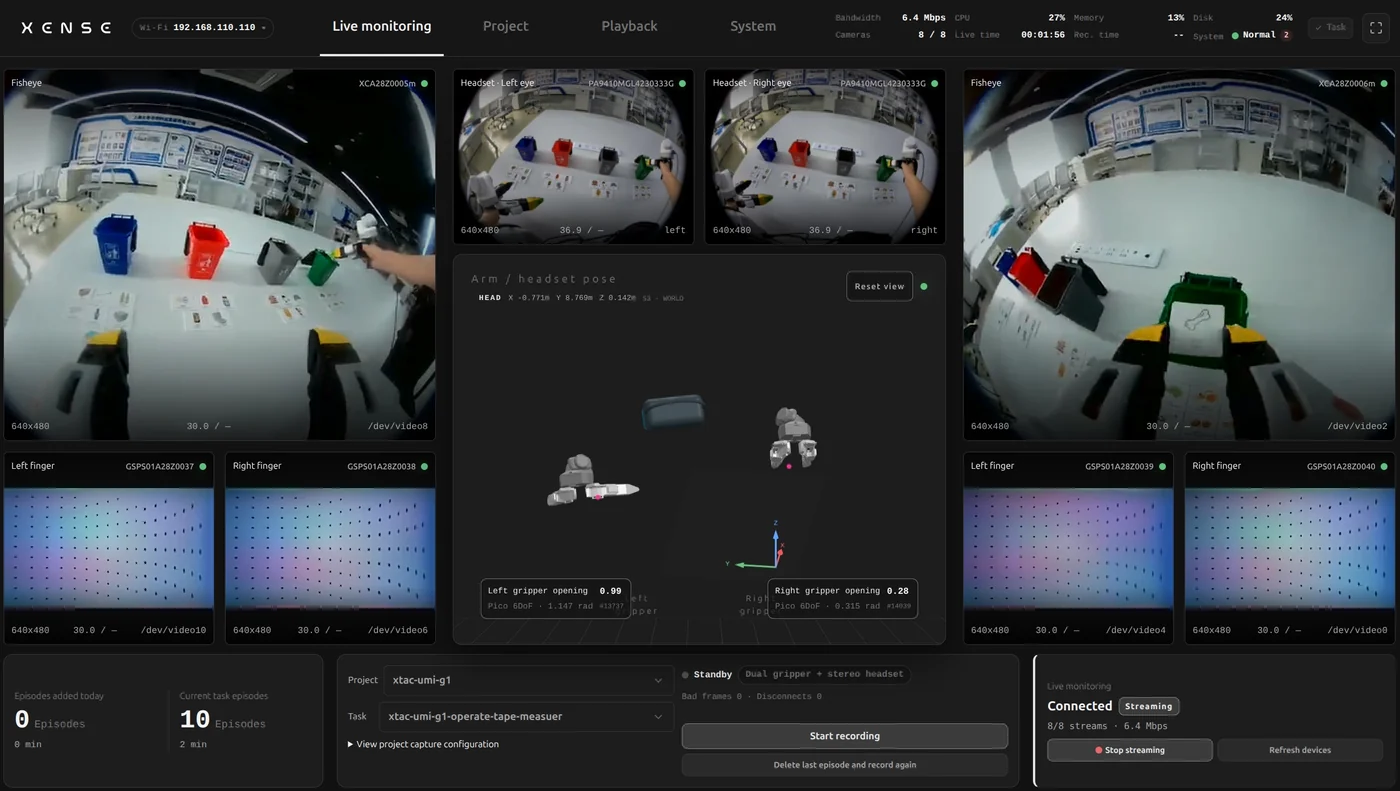
The console shows every camera, the visuotactile images and the poses on one screen, with the gripper opening updated in real time; recording state, free disk space and tracker-loss alerts are on the same screen, viewable from a tablet or phone. What to check before recording is in Confirm in the console before recording, and the product introduction is in The XTac UMI Backpack.
System composition
The whole capture happens in the backpack: every device plugs into it, it stores the raw recordings, and datasets are generated per task at export. Hover over (or tap) any block to see where its data comes from and where it goes; the buttons above switch between the three capture modes.
- The leader grippers plug into the backpack's
UMI-L/UMI-R: opening, IMU and button presses are reported over USB, and the visuotactile and wrist fisheye images are stored as raw frames. - The trackers sit on top of the grippers and are tracked by the headset; the headset connects to the backpack over a single Type-C cable and sends the poses, plus stereo or right-eye images in the modes that record them.
- The backpack stores each recording as one raw MCAP file; export per task to LeRobotDataset v3 or MCAP, then download it or upload it to a remote backend. The console opens in the browser of a tablet, phone or computer.
What each frame records
In an exported LeRobot dataset, each row is the observation from frame t-1 plus the action from frame t. Hover over (or tap) any data item, source or storage block to see where it comes from and where it is stored; the buttons switch between the three capture modes.
- The observation comes from frame t-1 and the action from frame t, so the action leads by one step; the first frame of each episode has nothing to pair with, so each episode is one frame shorter.
- The poses
*_tcp.*andhead.*are 9-D each: position x, y, z plus a 6-D rotation, in a world frame of X forward / Y left / Z up. - Dimensions per mode: Dual gripper, state and action 20-D each, 6 image streams; Dual gripper + stereo headset, 29-D each, 8 streams; Dual gripper + headset right eye, 29-D each, 7 streams (
head_rightonly).
Export formats and the extra files are in LeRobot dataset.
First deployment checklist
Before you start
Read Safety and compliance first. This page is an overview of the deployment: it says only what to do and where to do it; each step's detailed walkthrough is on its own page.
1. Headset setup
- System update: update Pico OS to 5.15.5.U or later.
- System settings: turn on developer mode and set screen-off and sleep to "Never".
- Trackers: pair the two trackers with the headset by the "odd left, even right" rule and switch them to independent tracking mode.
- Software: install XTac UMI XR on the headset.
2. Wiring and power
Connect in the fixed order: grippers → headset → power the backpack on.
Cables
- Plug the left and right grippers into the backpack's
UMI-LandUMI-Rports. - Connect the headset to the backpack's
PICOport with the headset cable (Pico → Pack).
Power (choose one)
- Option A: adapter power, with the power adapter plugged into the backpack's
DCport. - Option B: power-bank power, with the power bank connected to the backpack's
DCport through the 0.3m 12V PD power cable.
The grippers' connection and power requirements are in Gripper connection and serial numbers.
3. Open the console
- Tablet: cable the tablet to the backpack's
HOST1orHOST2port and the backpack opens the console on it; see Recommended: the tablet over USB. - No tablet: connect to the backpack hotspot instead.
4. Connect the headset to the backpack
- Put on the headset and open XTac UMI XR.
- Choose "XTac" as the connection (selected by default on first launch; it connects to the backpack at
192.168.100.1). - Tap "Connect".
The interface and connection states are in Pico4 headset and tracker setup; detailed steps are in Connecting the headset to the backpack.
5. Choose the capture mode
The capture mode is a fixed property of a project. When you create a project, choose one of these three modes to match what is connected:
- "Dual gripper"
- "Dual gripper + stereo headset"
- "Dual gripper + headset right eye"
The capture mode cannot be changed after the project is created
The System page only displays it. Whichever mode you choose, the headset and trackers must provide poses.
6. Upload configuration (optional)
- Where: console → System → Upload configurations.
- What to do: create an upload backend and fill in its credentials (how to get them is in the same section).
- Binding: bind it when you create a project; that project's exports with "Upload to remote" then use it by default, with no credentials to enter in the export dialog.
Daily collection cheat sheet
Every working day, follow the Quickstart: wire and power up → tablet over USB to open the console → connect the headset → pick a project and task → check before recording → record with the buttons → export.
Do not restart XTac UMI XR during collection: a restart resets the world origin, so the pose reference within one dataset stops being consistent; see Startup and frame alignment.
After recording: replay, review and export
Once recording is done, you can replay, review, delete and export recordings from the console.
1. Replay and review
- Hierarchy: console → Project, organized as project → task → recording.
- Overview: each recording shows its duration, frame count, data size and quality flags.
- Streaming replay: click "Playback" to stream it in the browser, with a draggable progress bar.
- Clean-up: delete a problem recording on the spot with "Delete".
Deletion cannot be undone
Deleting a recording also deletes its MCAP and H264 export files.
2. Export
Select the task to export and click "Export" to open the export dialog.
Precheck: data integrity is checked automatically first.
- Failed: the blocking items are listed one by one; delete or fix them as prompted, then run the precheck again.
- Passed: choose the "Export destination" and then the "Export format".
Destination (choose one)
- Download to device: the backpack packages the result, then a button lets you fetch the archive.
- Upload to remote: pick a pre-configured upload backend from the drop-down: follow the project default, switch to another configuration for this export, or create one on the spot.
Format (choose one)
- Equal formats: LeRobot dataset and MCAP have equal standing.
- Export both: one task can be exported in one format and later in the other; both outputs are kept.
- Default and override: a project can set a default format, which you can override for a single export.
3. Storage and clean-up
After uploading, local files are kept by default. To free space:
- Archive on upload: tick "Automatically archive after upload (delete local source files; keep metadata only)" before uploading.
- Archive any time: archive manually later.
Archiving keeps only the record and clears the raw files; clean-up protects formats that have not been exported yet.
Common questions
- Cannot reach the console: try the tablet over USB first; on the hotspot, confirm the device supports 5GHz, that you are on this backpack's hotspot and that the address includes
http://; power-cycle the backpack if it becomes unresponsive. - Tracker lost: when tracking accuracy degrades or the headset disconnects, both XTac UMI XR and the Live monitoring page show an icon. Check whether the tracker's blue light is on and whether the pairing is correct.
- Recording refused: once the recording disk reaches 80% used, starting a recording is refused with a message that the recording disk is N% used and has reached the 80% limit. Upload or download the data you have already collected, then archive to free space, or delete the episodes you do not need.
- Replay and live preview cannot run at the same time: when replay is refused, close the Live monitoring page open in another tab or on another device.
- While a recording is in progress, switching project / task, gripper calibration, firmware upgrades, system updates and similar operations are all refused; stop recording first. The capture mode is fixed with the project and can never be switched.
- Interface language: the console shows Chinese or English according to the browser language (any other language falls back to English). You can switch "Interface language" temporarily on the System page or in the mobile settings; reloading the page returns it to "Follow browser". The device's voice prompts follow the interface language, see Voice prompts.
Versions
This page is written against XTac UMI Collector 0.4.6. Each component's version baseline is whatever the console's System page shows, and upgrades are in Upgrades and OTA; the serial numbers in the text are only examples.