Upgrades and OTA
This page covers upgrading the console program and the gripper firmware:
- Console program: import an upgrade bundle on System → System update.
- Gripper firmware: flash it on System → Gripper configuration; see Gripper firmware.
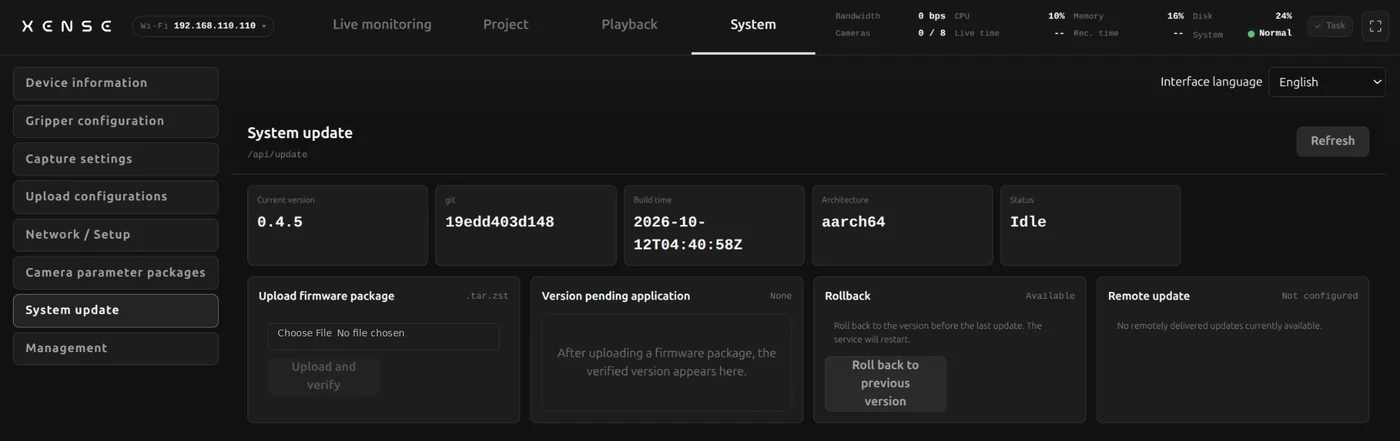
Importing an upgrade bundle
An upgrade bundle is a .tar.zst file provided by technical support, with the version in its file name, such as taccap-collector-v0.4.3-….tar.zst. It updates only the console program; it contains no gripper firmware or camera profiles and does not affect collected data.
- Stop recording.
- Click "Upload firmware package", select the
.tar.zstfile and click "Upload and verify". - Once verification passes, check the version number on the "Version pending application" card.
- Click "Apply update and restart" and confirm. The service restarts in about one minute; the upgrade is complete when the page shows "Update applied". If it times out, refresh the page manually.
- On Device information, confirm that the version number and build time have been updated.
If verification fails, the device rejects the bundle, gives the reason under "Last error" and keeps running the current version. Common causes: a corrupt or incompletely transferred file, a version gap that is too large, or a version older than the current one.
Some fixes must be applied by technical support
A few fixes involve the device's system components, are not included in upgrade bundles and cannot be applied on site. Whether a device needs such a fix is determined by technical support. "Upload firmware package" accepts only .tar.zst upgrade bundles; do not upload any other file.
Rollback
The device keeps the previous version when upgrading. If the new version fails to start, the file is corrupt or power is lost during the upgrade, the device automatically reverts to the previous version and remains bootable.
Manual rollback: when the "Rollback" card shows "Available", click "Roll back to previous version" and confirm.
- Only one version can be rolled back.
- A device that has not been upgraded since leaving the factory has no version to roll back to.
Upgrades and rollbacks do not affect recorded data, projects, upload configurations or network settings.
Gripper firmware
Gripper firmware is not updated through upgrade bundles; flash it from "Gripper firmware update" at the bottom of System → Gripper configuration, with no computer required. The firmware files and whether an upgrade is needed are covered in the Developer Kit's firmware OTA upgrade.
- Stop recording and make sure no gripper opening calibration is in progress.
- Select the target gripper (left / right), select the
.binfile, click "Upload and flash" and confirm. - When the page shows "Firmware flashed, the device is restarting", power the backpack off and on again (or replug that gripper's Type-C cable); otherwise the gripper may lose data.
- Check the firmware version on Device information; if the calibration card shows "Not calibrated", recalibrate on Gripper configuration.
You can click "Abort" during flashing; if flashing fails, simply flash again. The gripper will not be damaged.
Select firmware by role, and do not cut power while flashing
The leader gripper (SN ending in m) uses tc-gu-01-master.bin and the follower (SN ending in s) uses tc-gu-01-slave.bin; the choice depends on role, not on left or right. Flashing the wrong firmware leaves the gripper unable to start and requires a factory repair; cutting power or unplugging during writing also corrupts the firmware.