System settings
Open "System" from the console's top bar; the items are listed down the left. A first deployment needs gripper calibration, upload configuration and the network; the rest can be left alone day to day.
| Item | Purpose | When you need it |
|---|---|---|
| Device information | Versions, serial numbers, headset, gripper and camera status | Repairs, checking after an upgrade |
| Gripper configuration | Gripper opening calibration, firmware upgrade | First deployment, after changing a gripper |
| Capture settings | Current project capture configuration, recording shortcut, voice prompts | Checking the config, adjusting voice |
| Upload configurations | Remote upload accounts | Before uploading data |
| Network / Setup | Hotspot switch, site Wi-Fi, wired IP | Changing venue, giving several people access |
| Camera parameter packages | Import or restore camera parameters | Technical support has sent a new pack |
| System update | Upgrade and rollback | When there is a new version |
The interface language is also switched here; by default it follows the browser.
Stop recording first
While recording, switching project, gripper calibration, gripper firmware upgrades, camera parameter package imports and system updates are all refused with "Recording in progress". Stop the recording on the Live monitoring page first.
Device information
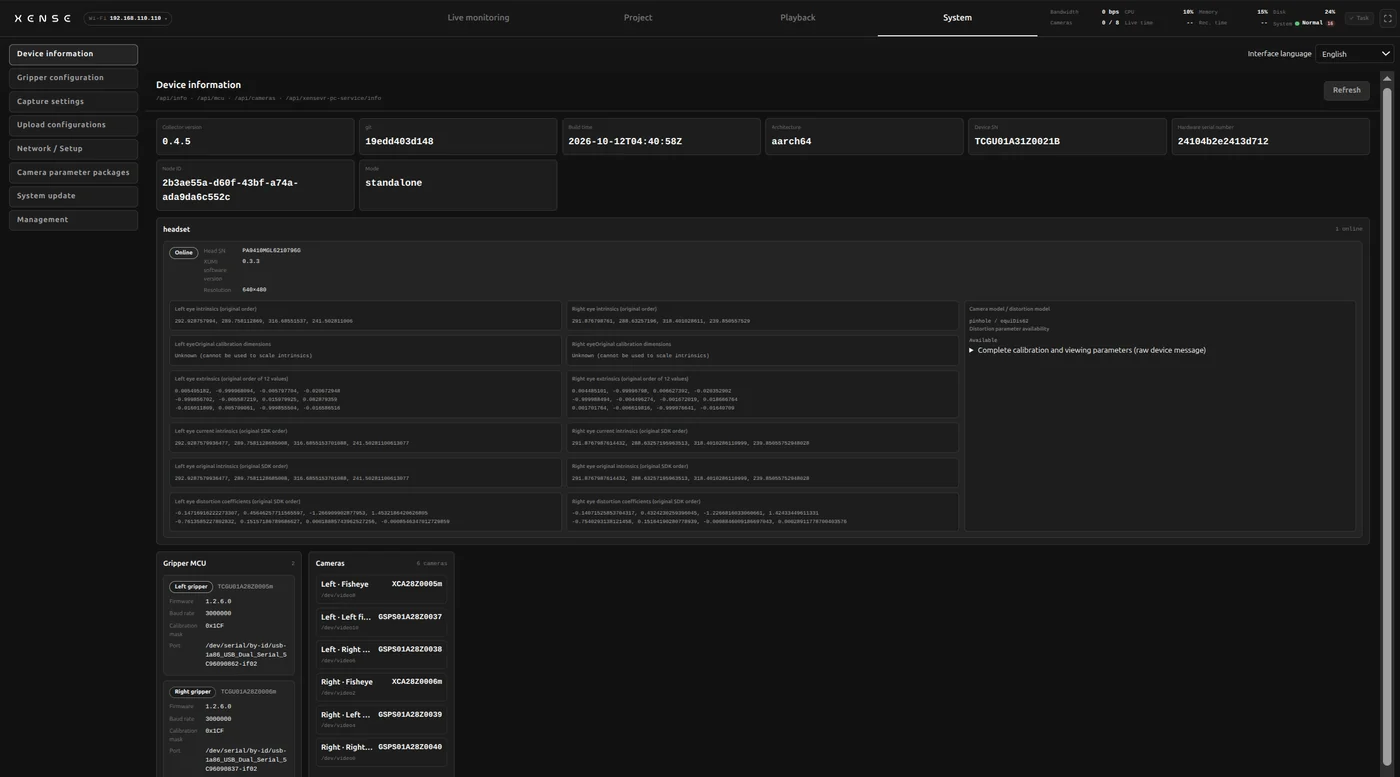
A read-only page; "Refresh" at the top right reloads it.
- Collector: software version, build time, device SN (matches the body label).
- Headset: online status, headset serial number, XUMI software version, resolution and camera parameters, plus the current project's headset mount.
- Grippers: SN and firmware version of each gripper.
- Cameras: the camera list, with offline ones marked "(Offline)".
When to look here:
- Repairs, identifying a unit: note the device SN and headset serial number, not the IP (it changes).
- After an upgrade: check that the version and build time changed.
- Wrong camera count on the monitor page: see which feed is "(Offline)".
- Before calibrating: confirm the leader gripper firmware is ≥ 1.2.0.
Export diagnostics: "Export diagnostics" on this page downloads an encrypted ZIP with application logs, the kernel log (dmesg) and version information. Hand it to technical support together with the device SN when reporting a fault; if the download fails, retry.
Gripper configuration
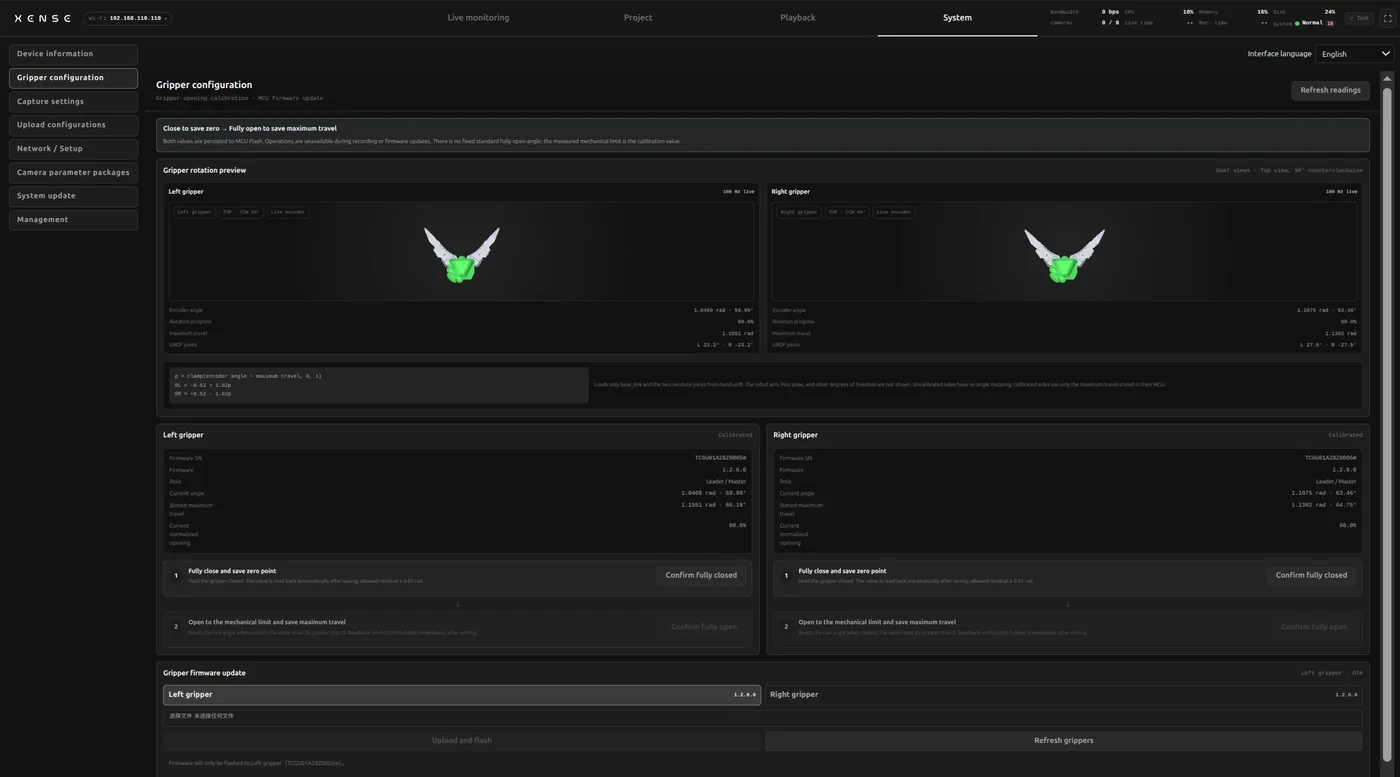
Gripper opening calibration normalizes the gripper opening to 0–1: write the zero when closed and the maximum travel when fully open. The values are stored in the gripper, survive power loss and moving to another backpack, so each gripper needs calibrating once; the console and the Developer Kit calibration script write the same values. When recalibration is needed is covered in the Developer Kit's Gripper calibration (zero + travel).
One gripper at a time, without skipping steps:
- Confirm the gripper is online; if it shows "Unsupported", check it is a leader gripper with firmware ≥ 1.2.0.
- Close the gripper fully and hold it, click "Confirm fully closed" to write the zero.
- Open the gripper to its mechanical limit and hold it, click "Confirm fully open" to write the maximum travel.
- When "Gripper opening calibration complete" appears, repeat for the other gripper.
Writing overwrites, and both grippers must be finished
Written values cannot be undone. A zero without a travel leaves the opening unusable; calibrating only one gripper puts left and right on different scales, with nothing in the data to show it.
"Gripper firmware update" is further down the same page; see Gripper firmware.
Capture settings
Current project capture configuration
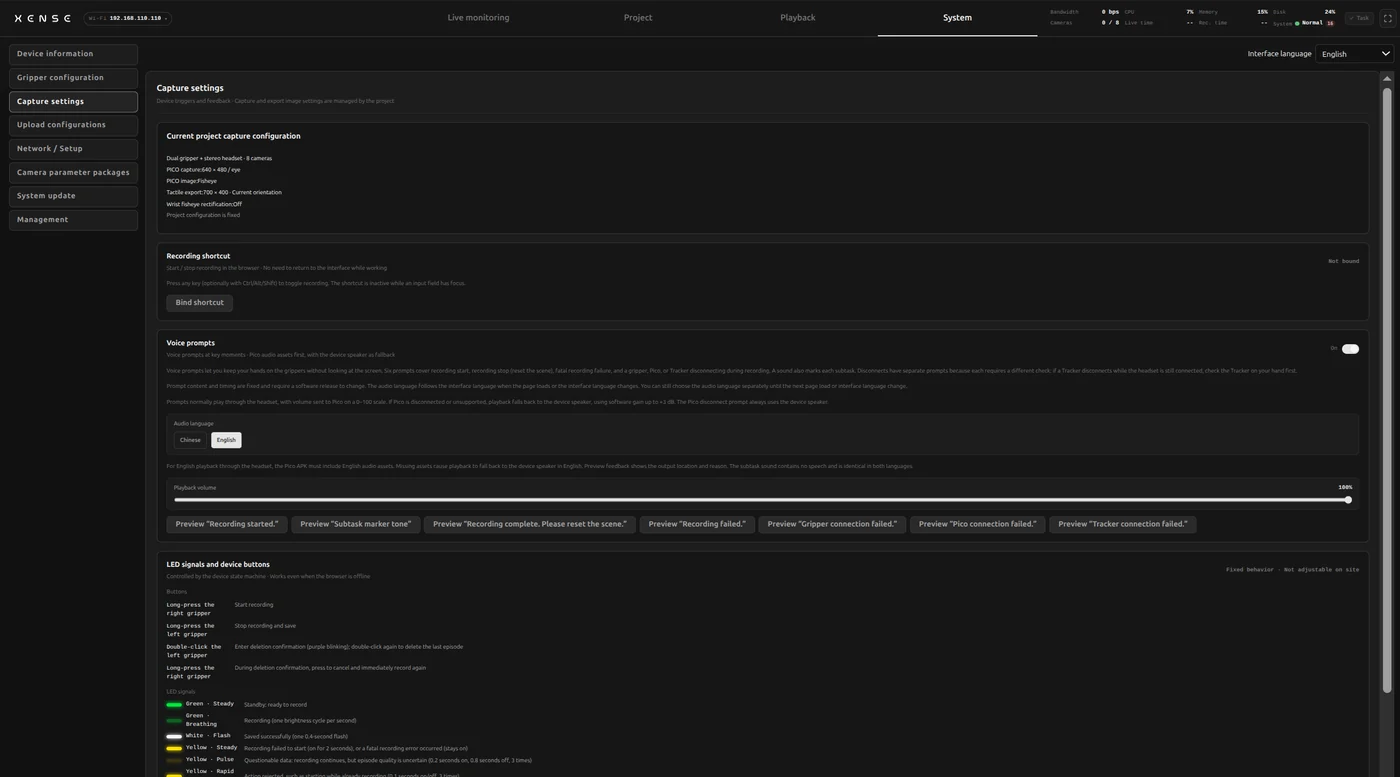
Shows the current project's capture config, read-only. These are chosen when you create the project and cannot be changed afterwards.
| Mode | Grippers | Headset | Camera feeds |
|---|---|---|---|
| Dual gripper | 2 grippers | No headset video (headset still tracks pose) | 6 |
| Dual gripper + stereo headset | 2 grippers | PICO stereo pair | 8 |
| Dual gripper + headset right eye | 2 grippers | PICO right eye | 7 |
The other six:
- PICO resolution:
640x480or1024x768per eye, headset modes only. - PICO image source: raw fisheye or undistorted.
- Headset mount: On head or Around neck, headset modes only; it decides which range the starting-pose check uses. Projects created before 0.4.6 show "On head (not specified, legacy project)".
- Export quality: High quality, Standard or Compact.
- Wrist fisheye rectification: see below.
- Tactile rectified-image export orientation: "Current orientation · 700 × 400 (landscape)" or "Additional 90° counterclockwise · 400 × 700 (aligned with SDK)".
When a project is selected, the headset syncs to its settings automatically.
Picked wrong? Create a new project
The config freezes at creation. An empty project with nothing recorded can simply be deleted and recreated.
Wrist fisheye rectification
With it on, the wrist view in the exported dataset is rectified to a straight-line perspective. Recordings always keep the raw fisheye image; rectification happens only at export.
Each gripper shows its rectification status. "Not calibrated · rectified with default intrinsics" means the lens model's generic parameters are used: capture and export work normally, slightly less precisely than per-unit calibration.
Recording shortcut
With a keyboard on the tablet, you can bind a key to start / stop recording: click "Bind shortcut" and press the key; "Clear" removes it.
- The shortcut is stored in the current browser; a different tablet needs binding again.
- It works only while the console page is open, and typing in an input box does not trigger it.
On site, recording with the gripper buttons is preferred, as it does not depend on the browser.
Voice prompts
Prompts play from the headset, or from the backpack's speaker when the headset is not connected. What is announced and when is in Voice prompts.
Three things can be adjusted here:
- Switch: mute with one click.
- Volume: 0–100.
- Language: Chinese or English, following the interface language by default.
Each line has a "Preview" button that tells you where the sound came out.
Upload configurations
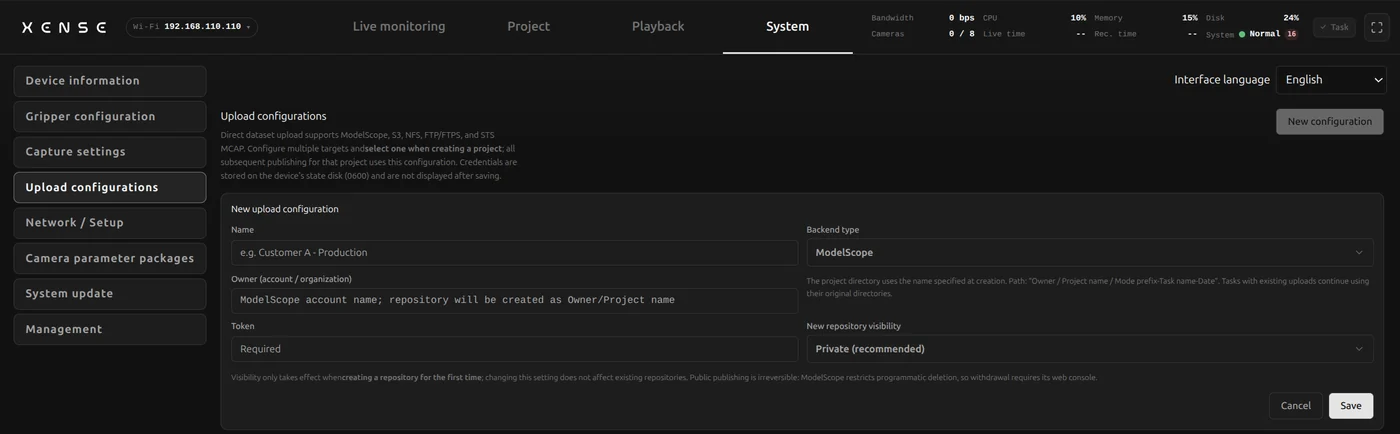
Save remote upload accounts here; you can keep several, each with its own name. Bind one when creating a project and uploads no longer ask for the account.
| Kind | Formats | Fields |
|---|---|---|
| ModelScope | LeRobot, MCAP | Owner, Token, visibility for new repositories |
| S3 object storage | LeRobot, MCAP | Bucket, Endpoint, Region, Access Key, Secret Key |
| Tencent Cloud COS | LeRobot, MCAP | Region (such as ap-guangzhou), full bucket name including APPID (such as dataset-1250000000), SecretId, SecretKey, optional path within the bucket |
| FTP / FTPS | LeRobot, MCAP | Server, port, username, password, target directory |
| NFS network storage | LeRobot, MCAP | Server, export path, protocol version |
| STS | MCAP only | Server, Account, Project, Project Type |
Uploads go to <root>/ project name / mode prefix-task name-date /; the device adds the prefix and date (except for STS).
- ModelScope: create a token at ModelScope under avatar → Account settings → Access tokens; private repositories are recommended.
- S3: create the bucket beforehand.
- Tencent Cloud COS: create the bucket beforehand; HTTPS is used automatically. Set the path (prefix) per data supplier, such as
vendors/vendor-a, givingbucket / path / project name / mode prefix-task name-date /; leave it empty for the bucket root. Upload-only accounts work. A task that already has upload records cannot change its path, so a resumed upload never lands in a different directory. Each file can be at most 625 GiB. - FTP / FTPS: FTPS is recommended; create the target directory beforehand and write it starting with
/. - NFS: create the target directory beforehand; the protocol version defaults to "Automatic".
To set one up:
- "New configuration": fill in the name, choose the kind, fill in the fields and save.
- Click "Validate" or "Test read/write" to confirm the account and directory work.
- Select it under "Upload backend" when creating a project; for an existing project, bind it on the project's row.
Credentials are not shown again after saving; leaving a field blank when editing keeps the stored value. Uploading is covered in Export.
Binding the wrong account cannot be undone
Data uploaded to someone else's account is hard to take back, and public publishing is irreversible. Check which configuration a project is bound to when you create it.
Network / Setup
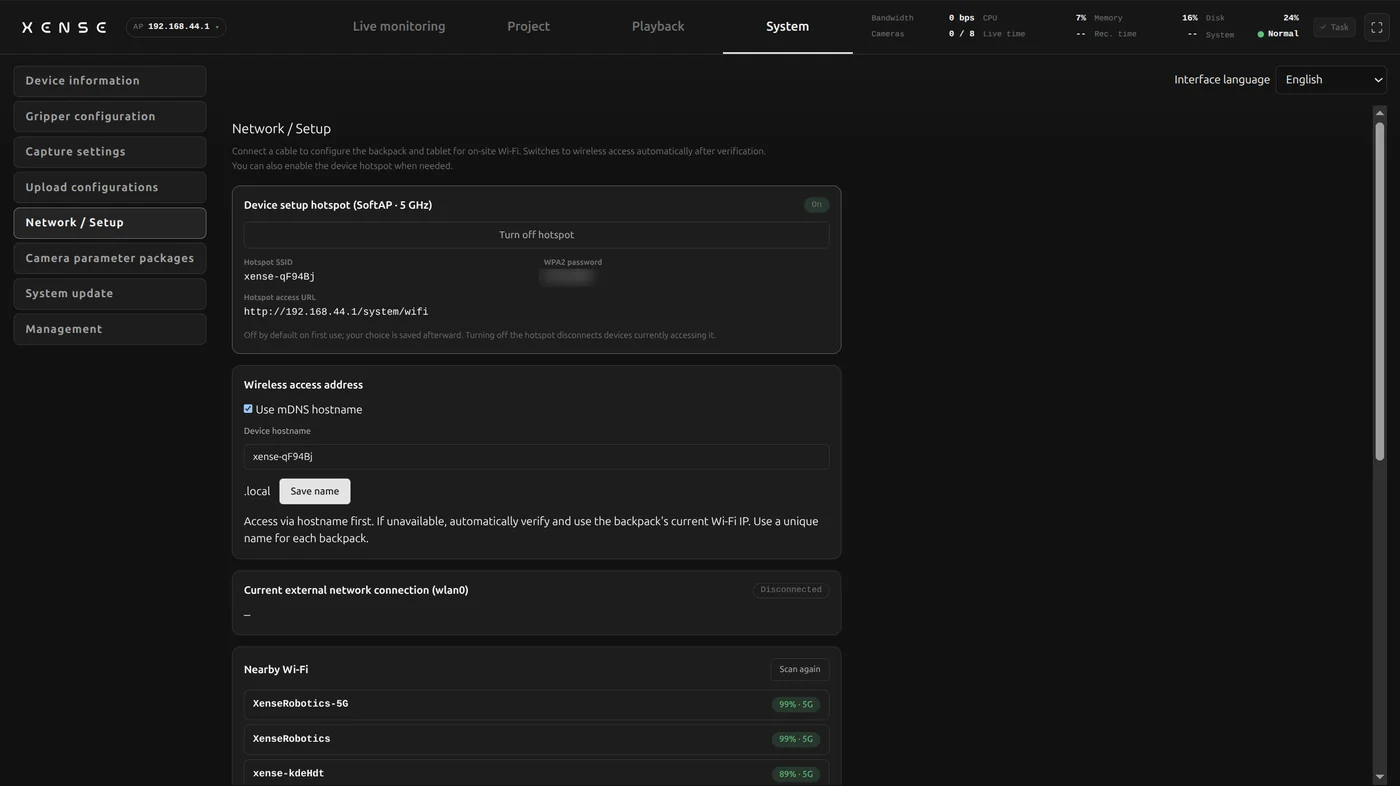
The ways to open the console are in Network and console access; this section only covers changing settings.
| Block | Contents |
|---|---|
| Local hotspot | Hotspot switch, name and password |
| Wireless address | Device name (.local); give each backpack a different name |
| Current Wi-Fi | Joined network, IP, "Disconnect and forget" |
| Nearby Wi-Fi | Scan for and join a site network |
| Wired connection | Automatic (DHCP) or static IP |
Joining site Wi-Fi
Set this up when the site has 5GHz Wi-Fi and several computers or tablets need to reach the backpack.
- Open the console from the tablet (USB) or the backpack hotspot and go to System → Network / Setup.
- "Scan again", click the target network, enter the password and connect.
- The backpack remembers the network and reconnects after a reboot.
Only 5GHz networks are listed (2.4GHz would disrupt the backpack hotspot). If the site has only 2.4GHz, use wired or the hotspot.
Wired IP
Defaults to automatic (DHCP) and works as soon as it is plugged into a router. Change it only for a direct cable to a computer, or when IT requires a fixed address:
- Set the mode to "Static IP".
- Enter the IP with its prefix, e.g.
192.168.1.10/24; leave gateway and DNS blank for a direct cable. - "Apply Ethernet configuration".
Changing the wired IP can drop the current page
If you are connected over wired, reopen the console at the new address after applying. If it goes wrong, get in via the tablet or the hotspot and switch back to "Automatic (DHCP)".
Camera parameter packages
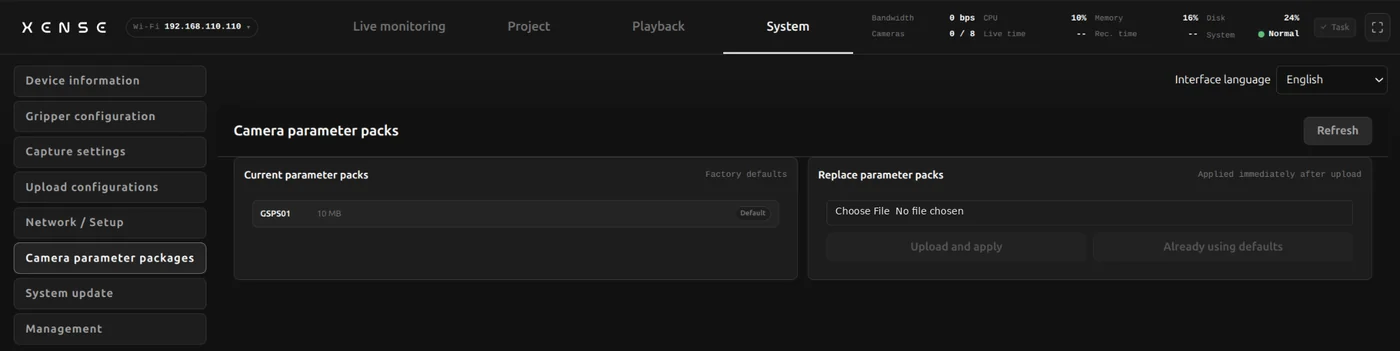
A camera parameter package (.xpack) is built in at the factory; import one only when technical support provides a new pack.
- Pick the
.xpackfile, click "Upload and apply" and confirm. - "Applied" means done; offline cameras pick it up when they come online.
- If the image looks wrong or you want the factory set back: "Restore defaults".
If an import fails, the device keeps its previous parameters.
System update
Upgrade and rollback are covered in Upgrades and OTA.