Troubleshooting
This page lists the cause and fix for each symptom. The most common issues are being unable to reach the XTac UMI Collector console (below, "the console"), recording being refused, and the export pre-check failing. Before troubleshooting, listen for the voice announcement and check the gripper LEDs and the Live monitoring page's status dots; LED meanings are in Gripper buttons, LEDs and voice.
Odor, smoke, obvious overheating, structural damage or damaged cable insulation
Cut the power and stop using the device immediately. Note the serial number on the body and contact technical support.
Power and connectors
The headset loses power and shuts down during use
Cause: the headset is underpowered, or the power bank stopped output on the original port when a second device was connected.
Fix: select components and wire them as described in Power-bank power. Do not connect additional devices to the power bank during collection.
Poor contact in the DC, PICO or USB port
Cause: the board has shifted under mechanical load (a hardware fault).
Fix: do not force the connector. Note the serial number on the body and contact technical support for repair.
A gripper's LED is dark, or the system log repeatedly shows mcu ... disconnected / reconnected
Cause: the gripper cable has poor contact or is not connected to UMI-L / UMI-R. When one gripper drops out, the other shows solid red (a system problem).
Fix: seat both ends of the Type-C cable firmly and tighten the locking screws. If disconnections continue, report the SN and the time period to technical support. LED patterns are described in LEDs.
Headset and trackers
The status dot on the Live monitoring page's pose card is yellow, with “Tracker out of view” or “Pose stale” beside it
Cause:
- Yellow dot: the headset is connected, but the tracker pose is invalid (out of view, tracking fault, or not powered on / not paired). Poses recorded while tracking was lost are unreliable and must not be used.
- "Pico offline": the headset is not connected to the backpack.
Fix:
- Move the grippers back into the headset's field of view.
- Confirm that both trackers show blue, are paired to the headset and are in independent tracking mode.
- For "Pico offline", check that XTac UMI XR is connected; see The app's screen.
The pose is shown as online, but the 3D model does not move
Cause: the tracker app in the headset has not fully started (for example, on first use of the day without pressing the tracker button). The badge may still show online.
Fix: before collecting, move a gripper and the headset and confirm that the 3D model follows. If it does not, hold the tracker's power button to reactivate it and restart the app in the headset.
The left and right gripper poses are swapped
Cause: the trackers were fitted or paired on the wrong sides. The SN rule is odd for left, even for right.
Fix: check against Reading a tracker SN and swap them back. Before recording, move one gripper alone to confirm.
Connecting and reaching the console
The tablet does not open the console when connected to the backpack
Cause: the tablet was factory reset, USB debugging was turned off, or debugging authorizations were revoked (the bundled tablet is authorized before shipping).
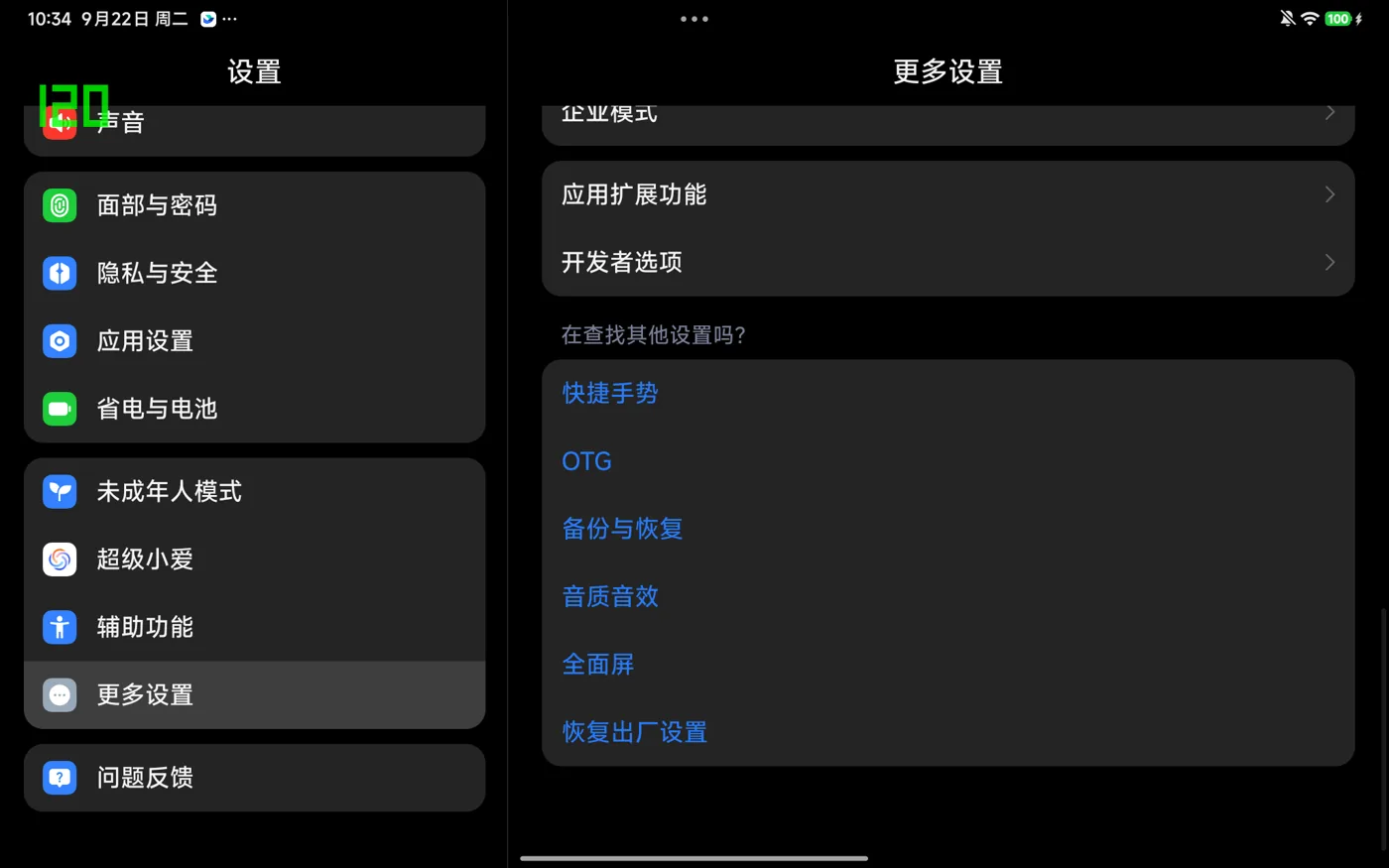
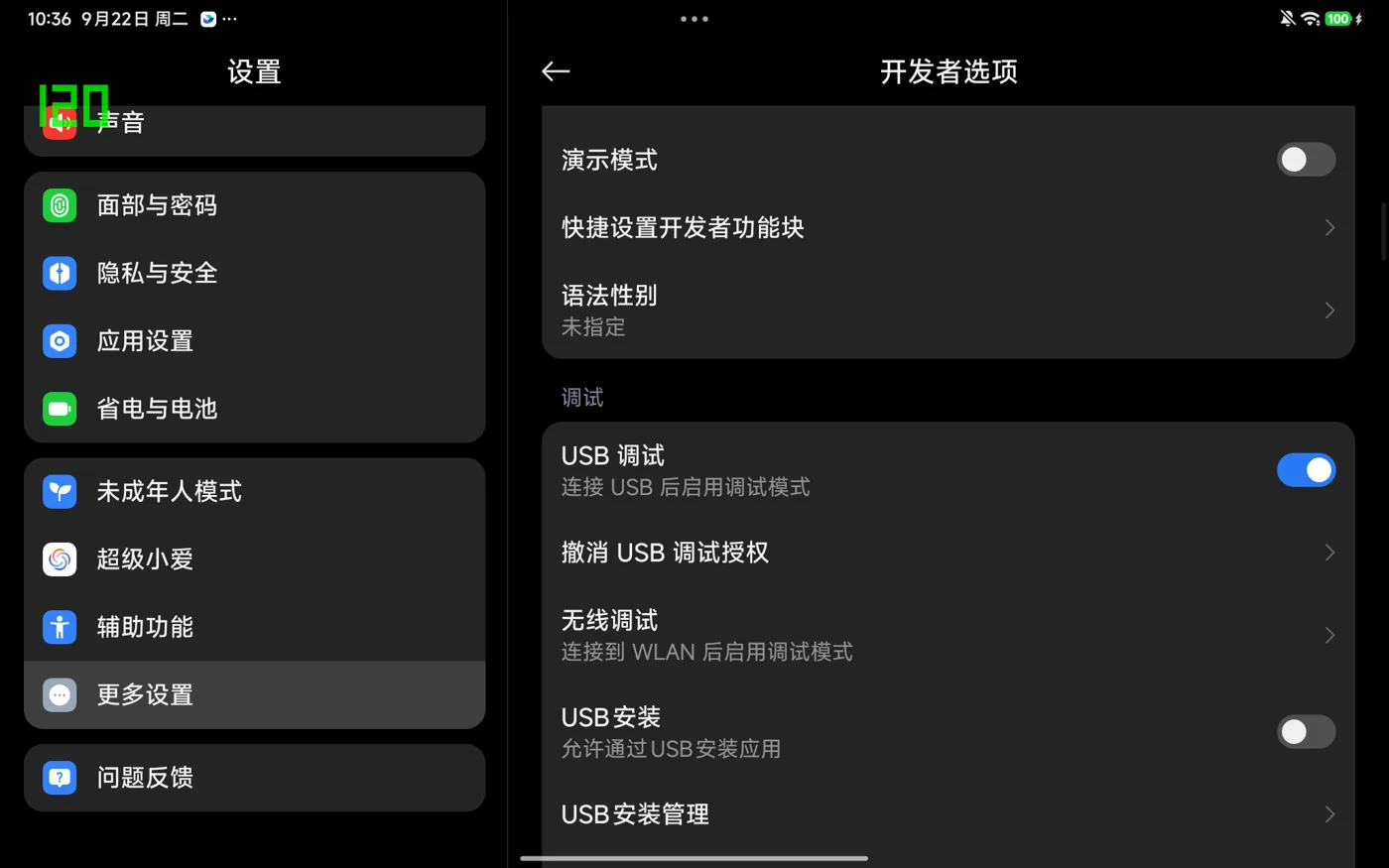
Fix: confirm that the cable is connected to HOST1 / HOST2 and the tablet is unlocked. If the console still does not open, re-enable USB debugging and trust the backpack as follows (the bundled REDMI Pad 2 SE is shown):
Go to Settings → My device and tap "OS version" about 7 times until developer mode is enabled.
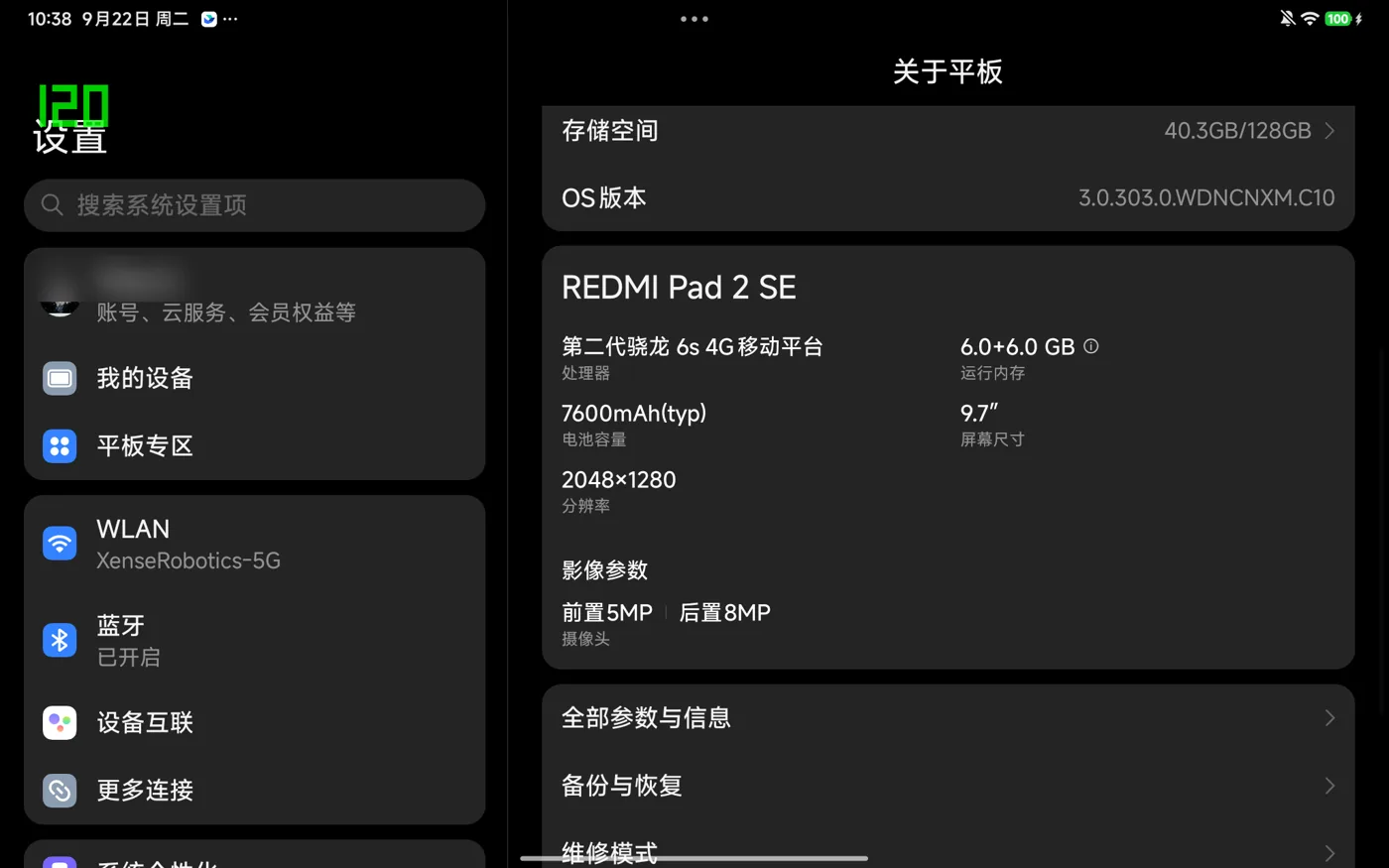
Go to Settings → Additional settings → Developer options.
In the Debugging group, turn on "USB debugging" and confirm.
Connect the tablet to the backpack. When prompted "Allow USB debugging?", select "Always allow from this computer" and tap Allow.
After authorization, the backpack disables the tablet's debugging-authorization timeout. Subsequent connections open the console without confirmation.
Connected to the backpack hotspot, but the console cannot be opened
Cause:
- Wrong backpack: every backpack hotspot name starts with
xense-. - Missing
http://: iOS / Safari treats the device name as a search term, so the page appears not to open, but no request is sent. .localcannot be resolved: some Android devices do not support it.
Fix:
- Check that the hotspot name matches the Wi-Fi line on the body label (the password is also on the label).
- Enter the full address
http://192.168.44.1(the hotspot gateway is fixed), or thehttp://xense-xxxxxx.localaddress on the last line of the label. - If the signal is weak, move closer. If the backpack is occasionally unresponsive, power-cycle it.
- Access methods are described in The backpack hotspot.
The tablet or phone cannot find the backpack hotspot
Cause: the hotspot operates on 5GHz only; devices that support only 2.4GHz cannot detect it.
Fix: use a 5GHz-capable device, or connect the backpack to the site network and access it over the LAN; see Joining a site network.
A PC cannot open xense-xxxxxx.local, but a phone can
Cause: mDNS resolution on Windows is unreliable.
Fix: use the IP address, shown in the top-bar network dropdown (viewable by connecting the tablet over USB). On the hotspot, use http://192.168.44.1.
The console disconnects during collection, and the Wi-Fi has switched to another network
Cause: Windows / the tablet switched automatically to a saved network with a "better signal".
Fix: turn off "auto-connect" for other saved networks, or forget them, so that only the backpack hotspot remains.
The backpack's network page cannot find the site Wi-Fi
Cause: the backpack joins and lists 5GHz Wi-Fi only; a router that supports only 2.4GHz is not shown.
Fix: use a wired connection or the backpack hotspot.
After extended use, the Wi-Fi disconnects and the body is hot
Cause: the backpack is overheating.
Fix: restart the backpack to recover. Check that the fan outlet is not blocked and the fan is running. If the problem recurs, report it for repair.
Collection and recording
The record button is grayed out, or the gripper button fails to start recording (solid yellow LED)
Cause: a recording gate did not pass. A dialog states which one (check order in Recording gates):
- no project / task selected;
- "Pico not ready" or "Tracker not ready", with the specific reason (such as a connection timeout, missing pose or video from one eye, missing clock sync, a headset configuration change awaiting confirmation, or a Tracker out of view or still for more than 5 seconds without active tracking);
- no gripper MCU online;
- the task has reached its cumulative collection target;
- the recording disk is 80% used;
- resetting the headset's coordinates before recording failed, the trackers are swapped, or the hands are outside the starting range (see the entries below).
Fix:
- No project / task: select a project and task at the bottom of the Live monitoring page.
- "Pico not ready": wait for the headset to connect and the pose dot to turn green.
- "Tracker not ready": move the grippers back into the headset's field of view and move them slightly.
- Target reached / disk full: see the next two entries.
Recording refused: “Task '…' has reached its cumulative collection target (N/M)”
Cause: the target counts cumulatively; both "ready" and "uploaded" episodes count. Archiving deletes only local files and does not change the state, so neither uploading nor archiving frees capacity.
Fix:
- raise the task's target count;
- or delete episodes that should not count on the Project page (such as accidental short episodes or episodes judged suspect);
- or create a new task to count from zero.
The counting rules are in Picking a project and task.
Recording refused: “Your hands are outside the starting pose range, so recording was blocked”
Cause: in modes that record headset video, both hands must be in the starting range in front of and below the body before recording. After the colon the message names each hand, the direction it is off and by how many centimetres (such as "left hand 5 cm too high"); how it works is in Starting-pose check.
Fix:
- Look forward, bring both hands back in front of and below your body, apart, not crossed and not raised too high, hold still for a moment and start again.
- The Z axis is always out of range (too high or too low): check that the project's "Headset mount" matches how the headset is actually worn; worn around the neck but set to On head, the hands look too high. The mount is fixed once the project is created, so a wrong one means creating a new project.
- A crooked headset, or looking down or turning sideways at the start, also shifts the whole range.
Recording refused: “Could not get valid headset and tracker poses at the same time”
Cause: within 1.5 seconds the device did not get valid poses from the headset and both trackers at the same time, so it cannot tell where the hands are.
Fix: work through Headset and trackers: the trackers are in the headset's view with a blue LED, and the pose card on the monitor page shows a green dot; move the grippers slightly to wake the trackers, then retry.
Recording refused: “The tracker positions are opposite to their left/right gripper bindings” or “Unable to confirm the left/right gripper positions”
Cause: before recording, the device checks where the left and right trackers actually are. Swapped grippers, wrongly fitted trackers or swapped bindings are refused; so is a start where left and right cannot be told apart because the hands are crossed, too close together or tracking is unstable.
Fix: look forward, hold your hands apart without crossing them, move slightly to wake the trackers and retry. If it still says they are opposite, check the grippers are in the correct hands, and check tracker fitting and binding as in The left and right gripper poses are swapped.
Recording refused: “Failed to reset Pico coordinates before recording”
Cause: before every recording the device has the headset reset its world frame and waits for it to finish. It fails if the headset is disconnected, XTac UMI XR is not running in the foreground, or the XR version does not support the reset; the reason follows the colon.
Fix: make sure the headset is connected, XTac UMI XR is running in the foreground and shows "Connected", and its version matches the version baseline, then retry.
Recording refused: “Recording disk is N% used, at the 80% limit”
Cause: recording is refused at 80% usage. The remaining 20% is reserved for transcode intermediates and exports, preventing truncated MCAP files on a full disk.
Fix:
- Archive: after exporting the data (download or upload), archive it.
- Delete: delete unneeded episodes on the Project page. Their MCAP and H264 files are deleted as well; this cannot be undone.
- Uploading does not free space: local files are kept by default; click "Archive" as well.
The gripper LED turns solid yellow during recording
Cause: a fatal problem occurred in this episode (for example, a camera or required channel dropped), so the episode is invalid. The LED stays yellow until recording ends.
Fix: stop recording, delete the episode and record again (the Project page shows a quality annotation). On the Live monitoring page, check the cable of the feed that dropped. LED meanings are in LEDs.
The headset disconnected during recording, and the episode was interrupted and marked failed
Cause:
- Trigger: the headset's USB link drops, its connection breaks, or its pose / images stop updating for about 3 seconds.
- Device response: the device immediately marks the episode failed and stops recording, announces "Pico connection failed" ("Tracker connection failed" for a tracker), and shows "Pico issue: recording interrupted" (once per incident). The data is kept for diagnosis; it is not counted and is excluded from normal export and upload.
Fix:
- Check the cable from the headset to the backpack's
PICOport, the headset battery, and that XTac UMI XR is running. For a tracker dropout, check the tracker. - Recording does not resume automatically. Start a new recording once ready; see Headset disconnects while recording.
A recording shows as failed, with power loss or a system restart as the reason
Cause: the backpack lost power, or the system or capture service restarted, during recording, so the episode was not finalized. After power is restored, the reason distinguishes power loss / system restart from a capture-service restart, and the data size reflects the files actually retained.
Fix: the files may be incomplete; verify, then delete and record again. If power losses recur, check the power supply and cabling; see Power and ports.
The gripper LED is solid red
Cause: the backpack reports a system problem (a gripper or camera dropped out, or a required channel is missing). The LED stays red until the problem clears. Red indicates a fault only, never recording.
Fix:
- Reconnect the cable of the feed shown as offline on the Live monitoring page.
- In Device information, check which camera is marked "(Offline)" and whether both gripper MCUs are present.
- If the problem persists, power-cycle the backpack.
The gripper LED flashes red rapidly
Cause: the gripper's MCU self-check reports an internal fault (for example, a sensor fault). During this time it ignores the backpack's LED commands.
Fix: reconnect that gripper's Type-C cable or power-cycle the backpack. If the problem recurs, note the gripper's SN and contact technical support.
The buttons do not respond: a double-click is refused (fast yellow flash), or a long press during recording has no effect
Cause: this is the designed state-machine behavior:
- during recording, a double-click and a long press on the right gripper are silently ignored to prevent accidental input;
- a double-click is refused when there is nothing to delete;
- a double-click has no effect during the 3-second cooldown after a deletion.
Fix: refer to the gesture table in Buttons. Current bindings are at System → Capture settings.
The device is silent: no voice announcement when recording starts or stops
Cause: announcements play through the headset by default, and through the backpack's onboard speaker only when the headset is unavailable. If both are silent, the announcements are usually muted or the volume is 0.
Fix:
- At System → Capture settings › Voice prompts, check whether the switch shows "Muted" and whether the volume is 0.
- Click "Preview" next to each line to test it; the page shows which device played the sound and why.
- If English is selected and the headset app lacks English assets, that line plays through the onboard speaker.
- Wording and timing are fixed; only the switch, volume and announcement language can be adjusted.
The fisheye view is blurred
Cause: the focus ring is easily knocked out of focus.
Fix: check both fisheye views before collecting. If a view is blurred, turn the focus ring back until the image is sharp. Clean a dirty lens with a lint-free cloth; see Maintenance.
Switching project, gripper calibration, a firmware upgrade or a system update is refused with “Recording in progress”
Cause: these operations are refused while recording.
Fix: stop recording first (with the Live monitoring page button or a long press on the left gripper), then retry.
Replay, export and data
“Playback” is refused, stating that the camera preview is using it
Cause:
- Replay requires exclusive use of the backpack's hardware encoder (shared with live preview). It is refused while Live monitoring is open in another tab or on another device. A camera is still treated as using the encoder for up to 15 seconds after it disconnects.
- The reverse does not apply: if replay starts first, opening the monitor page shows the preview normally without interrupting replay.
Fix: close the monitor page in other tabs and on other devices, wait a few seconds and click Playback again. See Playback.
After archiving, those recordings cannot be replayed or exported in the other format
Cause: this is expected behavior.
- Archiving deletes the raw files that replay and export both read, keeping only the catalog record. On the Project page, "Playback" for those episodes is grayed out with "Archived; local source files deleted".
- If an episode was uploaded in only one format, the other format can no longer be exported. The archive confirmation lists these episodes first.
Fix:
- Export every required format before archiving. The remote repository copy is authoritative.
- Recordings that were never uploaded can also be archived, but the data will then have no copy; the confirmation shows a prominent warning.
- For the entry point and criteria, see Archive; for state definitions, see Episode states.
The upload finished, but no space was freed on the recording disk
Cause: this is expected behavior; uploads keep local files by default.
Fix:
- To free space: before uploading, select "Automatically archive after upload (delete local source files; keep metadata only)", or click "Archive" in the task's export dialog afterwards.
- Archive scope: every recording uploaded in any format is archived. If only one format was uploaded and both are needed, export or upload the other format first.
An NFS / FTP upload fails, or “Test read/write” does not pass
Cause: usually the target does not meet one of the requirements below, or the path / port is incorrect. Refer to the check's messages.
Fix: open the corresponding entry at console → System → Upload configurations and check each item according to the messages:
- Target directory: must already exist (likewise the NFS target subdirectory); the device does not create it.
- Permissions: the NAS or FTP / FTPS service must allow the account to write, read back, rename and delete.
- NFS: check the protocol version and UID / GID.
- FTPS: check that the server address matches the certificate and whether a private CA is required.
- Save the changes and click "Test read/write" again. If it still fails, contact technical support with the exact check message, device SN, console version and backend type.
The LeRobot dataset is larger than expected
Cause: multiple video feeds are recorded simultaneously; about 0.5GB per hour of exported LeRobot dataset is normal. The size is mostly set by the project's "Export quality".
Fix: plan transfer and storage capacity at this scale. For a new project where size matters, choose "Compact" export quality when creating it; an existing project's export quality cannot be changed.
After upgrading, exported or uploaded datasets show as needing re-export
Cause: this is expected. From 0.4.6, exported poses are relative to the headset at the start of each episode and the left-hand TCP uses the mirrored convention, so pose values change throughout and old exports are marked stale. Raw recordings are unaffected.
Fix: re-export recordings whose raw files are still on the device. Archived recordings cannot be re-exported; keep their old exports. Do not merge old and new exports into one dataset; tell them apart by tcp_frame_convention in meta/info.json, see Export formats.
Upgrades
Power was lost during an upgrade / the console cannot connect after applying an update
Cause: the collection software restarts when an update is applied, and the page waits up to 90 seconds. The previous version is retained, so a failed start or power loss reverts to it automatically and does not leave the device unable to boot.
Fix:
- Refresh the page.
- If the console still cannot connect, power-cycle the backpack.
- On the System update page, check the current version and "Last operation / Last error". If the device rolled back, import the bundle again; see Rollback.
The upgrade bundle fails verification on upload
Cause: the file is corrupt or incompletely uploaded, the version gap is too large, or the version is older than the current one.
Fix: read "Last error", then download and upload the bundle again. For a version-skipping upgrade, request intermediate bundles from technical support. A rejected bundle does not affect the currently running version.
After flashing the gripper firmware, the gripper works intermittently and frames are silently dropped
Cause: flashing ends with a soft reset only, so the gripper's USB-to-serial chip is not power-cycled and remains in a degraded state.
Fix: power-cycle the backpack (or reconnect that gripper's Type-C cable), then check the firmware version in Device information; see Gripper firmware.
If the problem persists, click the block of readings at the top right of the top bar to open the "System logs" (a red badge with the error count appears when there are errors). The panel cannot export files, so a screenshot is sufficient; there is no need to retrieve logs from the device.
When reporting through the channels in Support and feedback, include:
- A system-log screenshot and the time the error occurred;
- The complete error text;
- The device SN and console version (System → Device information);
- The operation in progress when the problem occurred;
- The project / task / episode number, if a recording was involved;
- The gripper LED state and a Live monitoring screenshot, if a gripper or the views are involved.