Gripper connection and serial numbers
The gripper is the same on both editions; only where the cable goes and how detection is checked are split into "Backpack Kit / Developer Kit" tabs.
- Backpack Kit buttons, LEDs and voice: Gripper buttons, LEDs and voice.
- Product positioning and components: XTac UMI G1; specs: Technical specifications.
Leader gripper connection and use
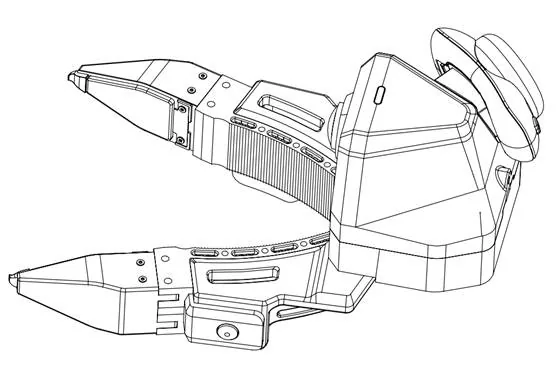
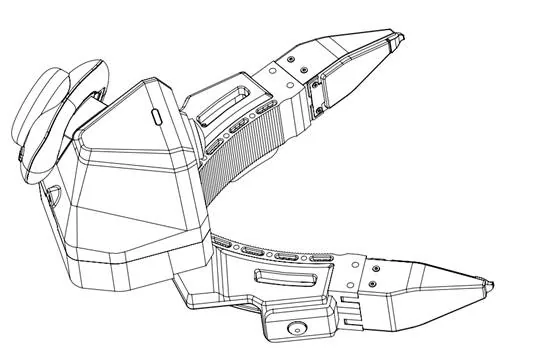
The leader gripper takes power and communication over USB Type-C.
Before connecting
- Left and right leader grippers, two USB locking cables, and the collection unit (the backpack or the collection PC; for the collection PC see Collection PC requirements).
- No 9V/12V fast-charging adapter connected directly to the leader gripper.
- Type-C locking end intact, nothing foreign in the port.
- Visuotactile sensor surfaces free of dirt, scratches, looseness and foreign objects.
Connection steps
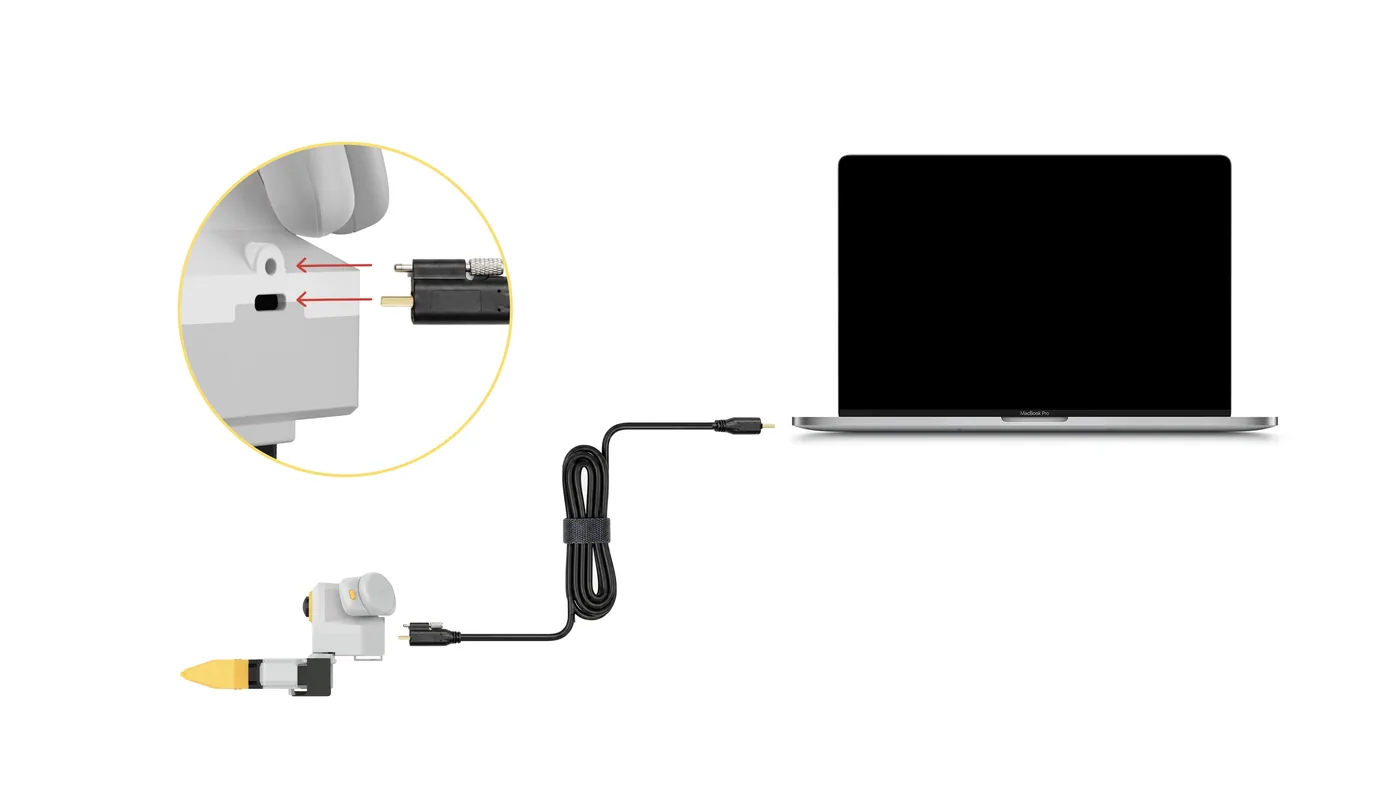
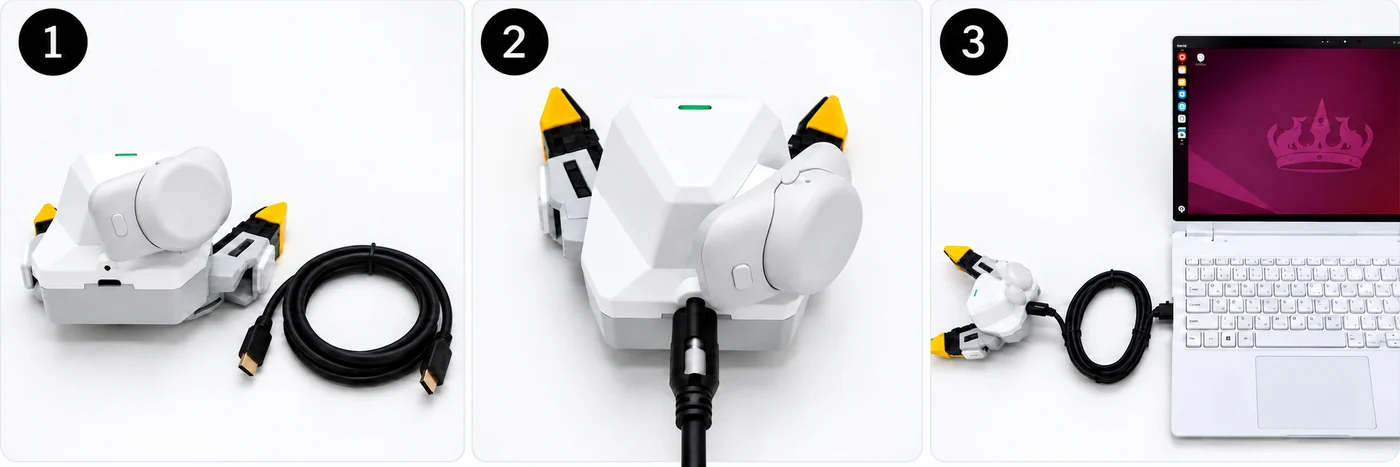
- Take out the USB Type-C communication cable.
- Plug it into the leader gripper body's Type-C port and tighten the locking screws.
- Plug the other end into the collection unit: Backpack Kit left gripper to
UMI-L, right toUMI-R; Developer Kit to a Type-C or Type-A port on the collection PC.
Power-on and detection
- LED solid green (standby).
- The "cameras" counter at the console's top right shows all cameras online, 6 on the gripper side (2 wrist cameras + 4 visuotactile).
- The "Live monitor" page shows both fisheye views and all four tactile views.
- Offline cameras are marked "(offline)" on the System → Device info page.
Check the UVC device count with lsusb: 6 for bimanual (2 wrist cameras + 4 visuotactile sensors), 3 for a single gripper.
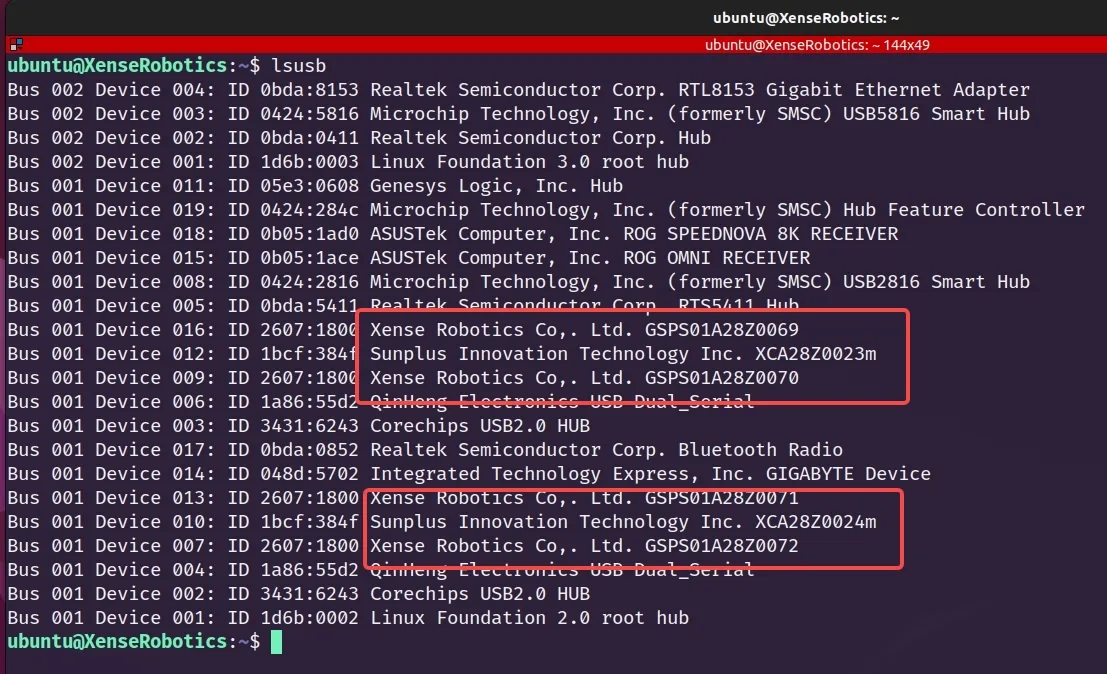
Each red box is one leader gripper:
| Text in the box | What it is | Per leader gripper |
|---|---|---|
Xense Robotics ... GSPS01… |
Visuotactile sensor | 2 |
Sunplus ... XCA… |
Wrist fisheye camera | 1 |
- Telling sides: by the serial number's last digit (odd-left / even-right, see Serial numbers and side identification); in the picture
…0069/…0071are left,…0070/…0072right. - Wrong count: check cable locking and USB contact; if still wrong, see Hardware faults.
A leader gripper needs travel calibration for a normalized opening:
- Backpack Kit: console System → Gripper page (write zero closed → write maximum travel fully open).
- Developer Kit: see Gripper calibration (zero + travel); the software refuses to connect to an uncalibrated leader gripper, and both sides of a pair must be calibrated.
- Firmware, SDK and repository versions must match; see You must upgrade to the latest versions.
Follower gripper mounting and connection
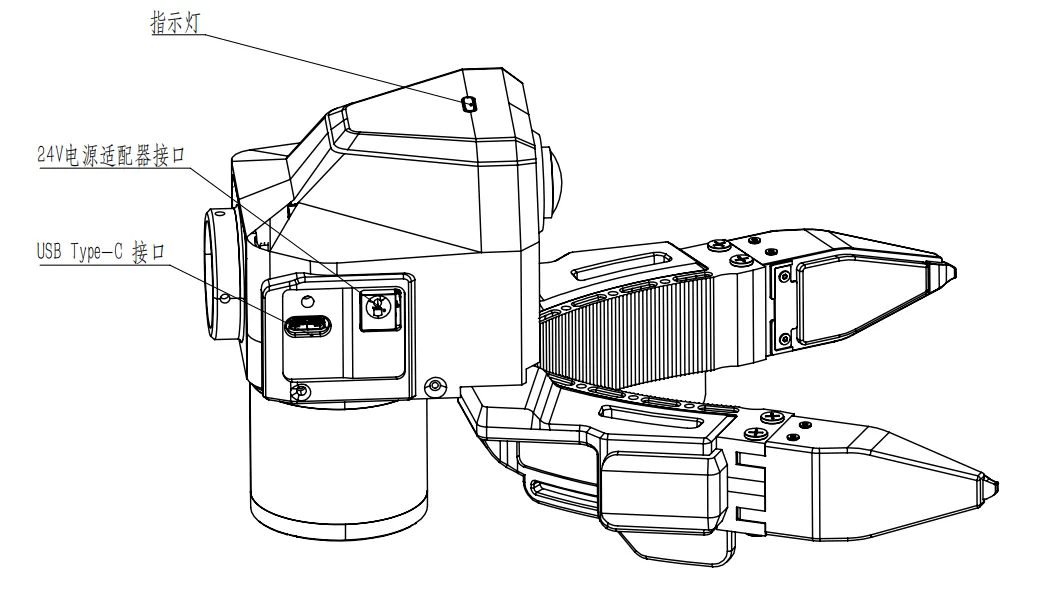
The follower gripper mounts on the robot's end effector and is not side-specific; mind flange orientation, cable routing and workspace.
Before mounting
- The robot is stopped and in a safe pose.
- Flange size, screw spec, mounting orientation and end-effector payload meet the project requirements.
- 24V adapter, Type-C communication cable and locking parts intact.
- Cables routed clear of joints, the gripper's range of motion and obstacles.
Flange mounting
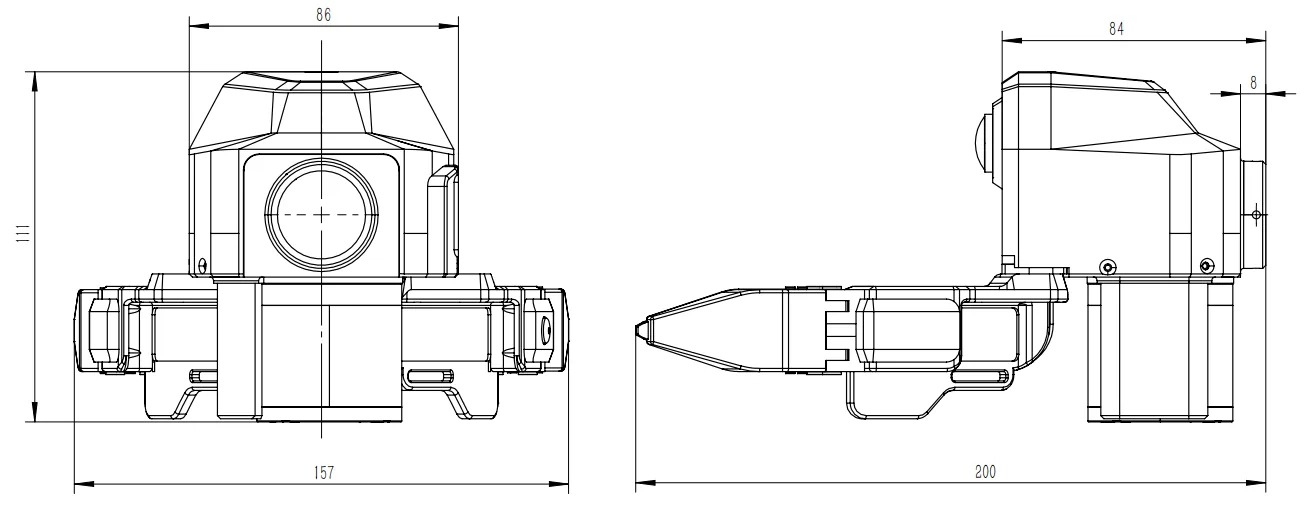
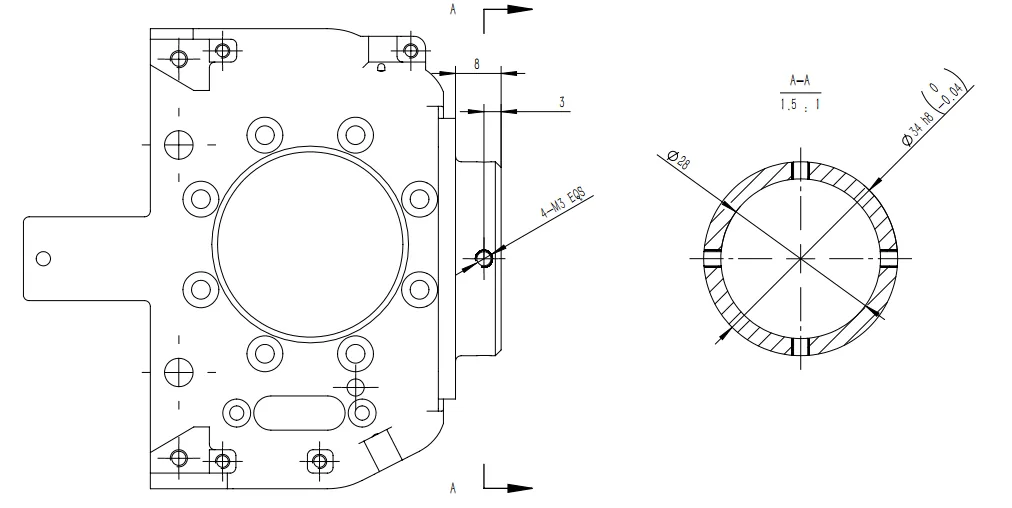
Adapter hole pattern, mounting frame and gripper models (URDF / MJCF / USD) are in XTac-UMI-Description.
Power and communication connection
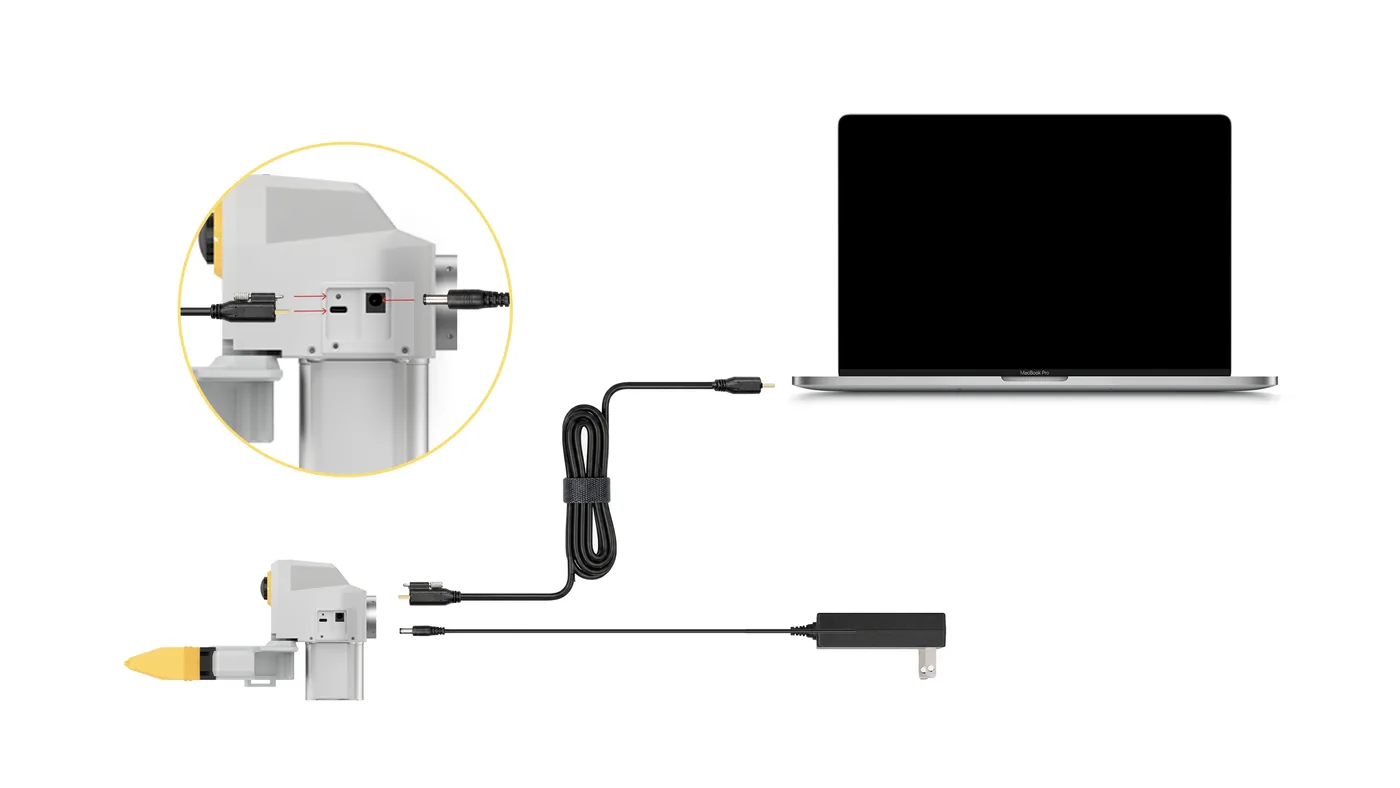
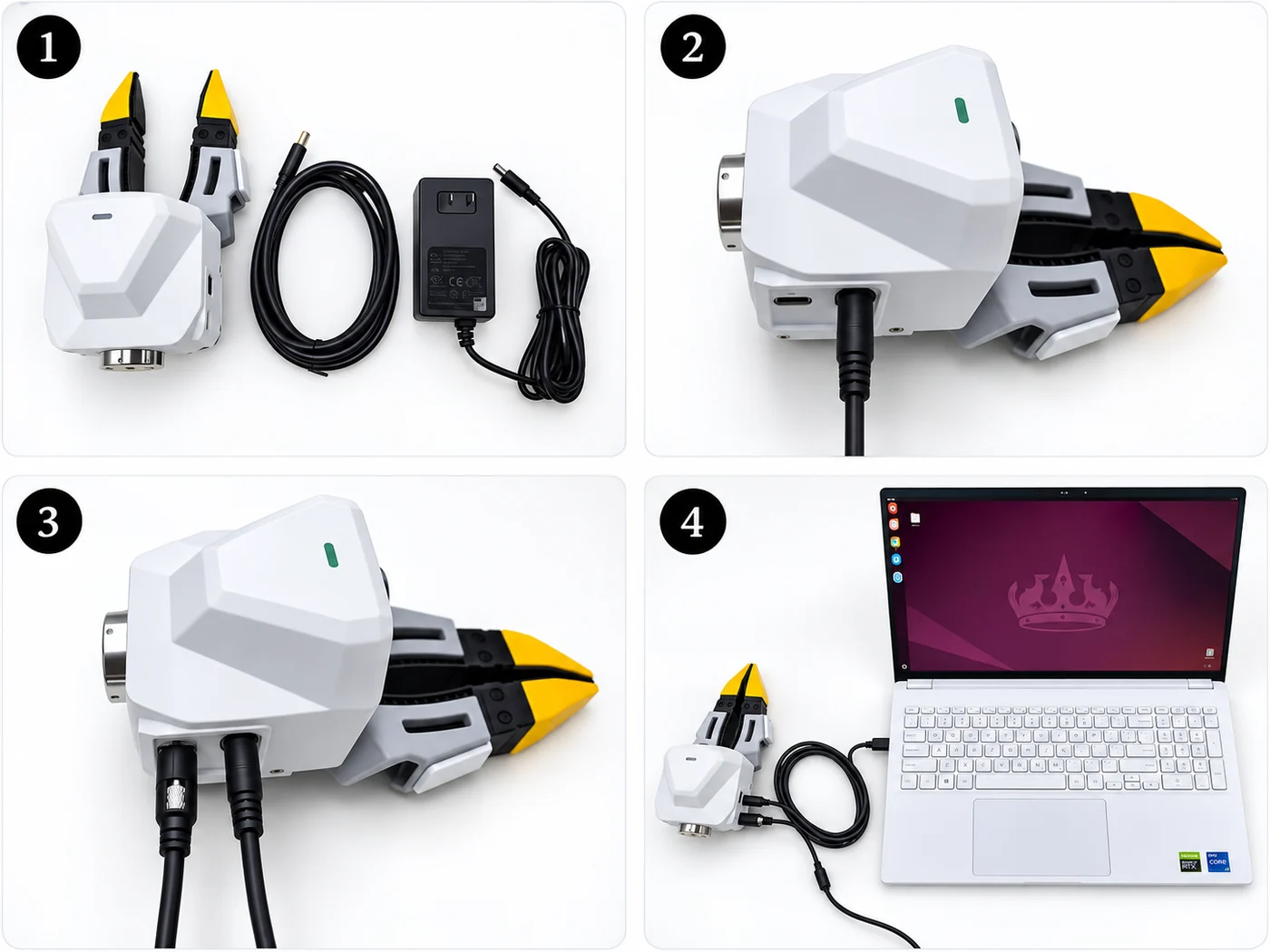
- Take out the USB Type-C communication cable and the 24V power adapter.
- Connect the 24V power adapter to the gripper body.
- Plug the screw end of the Type-C locking cable into the body and tighten the locking screws.
- Plug the other end into the collection unit and confirm communication in the software.
Cable and mounting check
- Gripper firmly fixed, 24V secure, Type-C locked with enough slack.
- Cables cannot be pulled, bent or tangled during motion.
- First run at low speed to confirm nothing interferes.
Power and connection requirements
| Item | Leader gripper | Follower gripper |
|---|---|---|
| Power | USB Type-C bus power, DC 5V/500mA, no separate supply needed | 24V power adapter (do not use a supply with the wrong rating or a faulty one); Type-C is communication only |
| Cables | Supplied locking cable: Type-C on the gripper end, Type-C or Type-A on the other | Type-C communication cable + 24V power cable |
| Connect and lock order | Connect the gripper end and tighten the locking screws first, then the collection unit | Connect 24V power first, then Type-C, and tighten the locking screws |
| Disconnect order | Unplug the collection unit end first, then loosen the screws and unplug the gripper end | Unplug the collection unit end first, then cut 24V, and finally loosen the screws and unplug the gripper-end Type-C |
| Static | Anti-static precautions when powering on/off and removing or fitting sensors | Same as leader |
- Before unplugging, stop collection, recording, robot motion and replay.
- Whole-system power order: Backpack Kit Connection and disconnection order, Developer Kit Power-on and power-off order.
- On an unexpected reboot or no detection, stop immediately; see Hardware faults.
Serial numbers and side identification
Last digit of the serial's running number: odd = left, even = right.
- Applies to grippers, visuotactile sensors, wrist cameras and Pico trackers.
- Developer Kit: the collection software assigns sides automatically (see Device auto-discovery and the odd-left/even-right rule); to check by hand, run
lsusband read the last digit. - Backpack Kit: the console's System → Device info page shows each gripper's left / right badge and SN.
Safety notes
Power, the ban on direct fast charging, plugging, static and sensor-surface requirements: Safety and compliance.
- Sensor cleaning, storage and removal/refitting: Maintenance.
- Run the follower's self-check before letting it move.
- Once detected, run a first collection with the Backpack Kit quickstart or the Developer Kit quickstart.