Network and console access
This page explains how to open the XTac UMI Collector console (below, "the console"). The recommended way is the bundled tablet over USB, which can also put the backpack and the tablet on the site Wi-Fi together.
Identifying the unit: by its label, not by IP
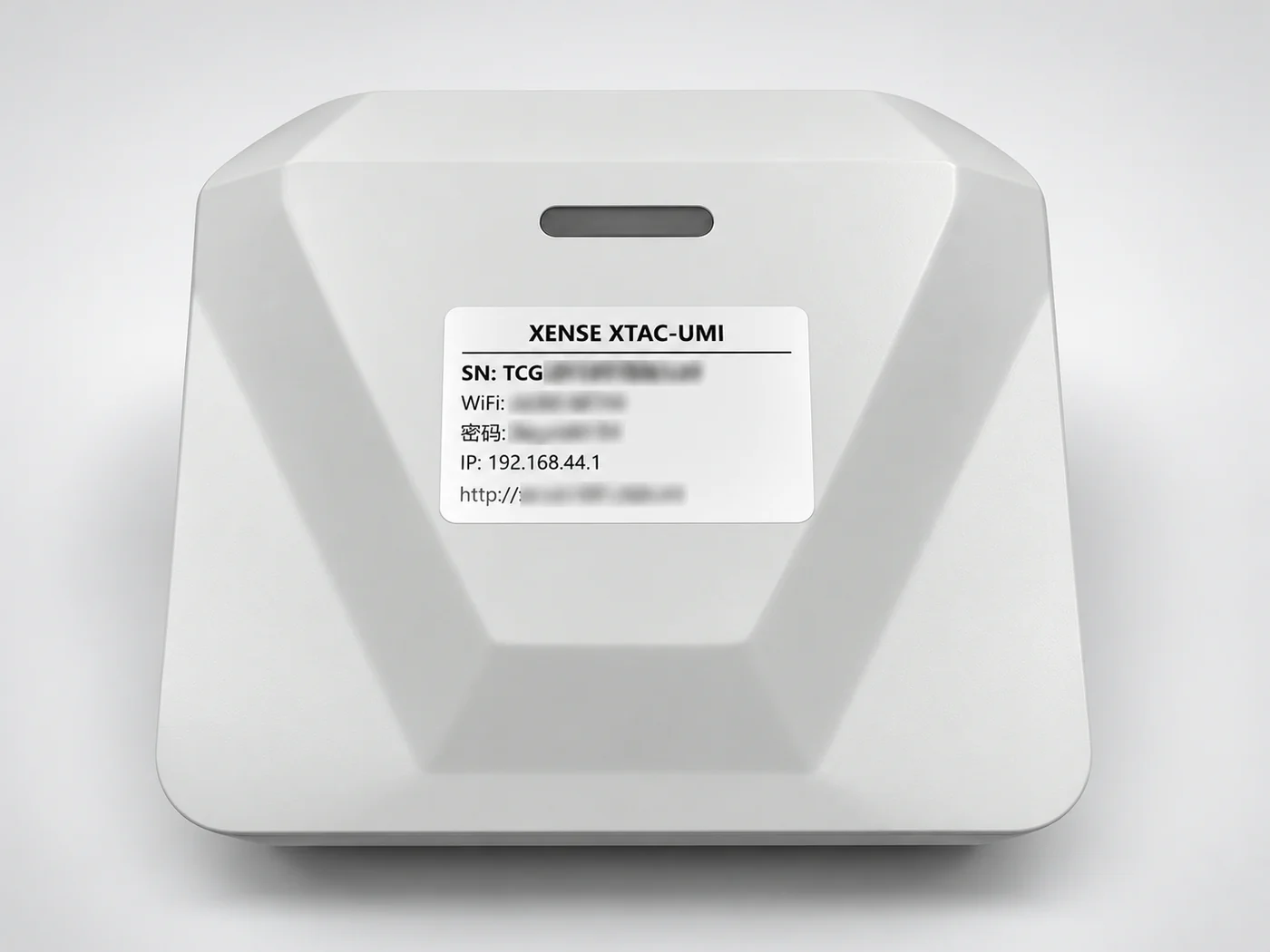
The body label shows the device's SN, hotspot name and password, IP and mDNS address. Keep in mind:
- Hotspot IP: the IP on the label (
192.168.44.1) is the hotspot's fixed address, usable only while connected to this unit's own hotspot. - Site network IP: once on a site network, every unit's IP differs and changes; never write it into a fixed procedure or configuration file.
- Identifying a unit: always by SN (see System → Device information) and hotspot name.
Recommended: the tablet over USB
Cable the tablet to the backpack's front HOST1 or HOST2 port and unlock the tablet. Once connected, the backpack opens System → Network / Setup on the tablet by itself, with no Wi-Fi to join and no address to type.
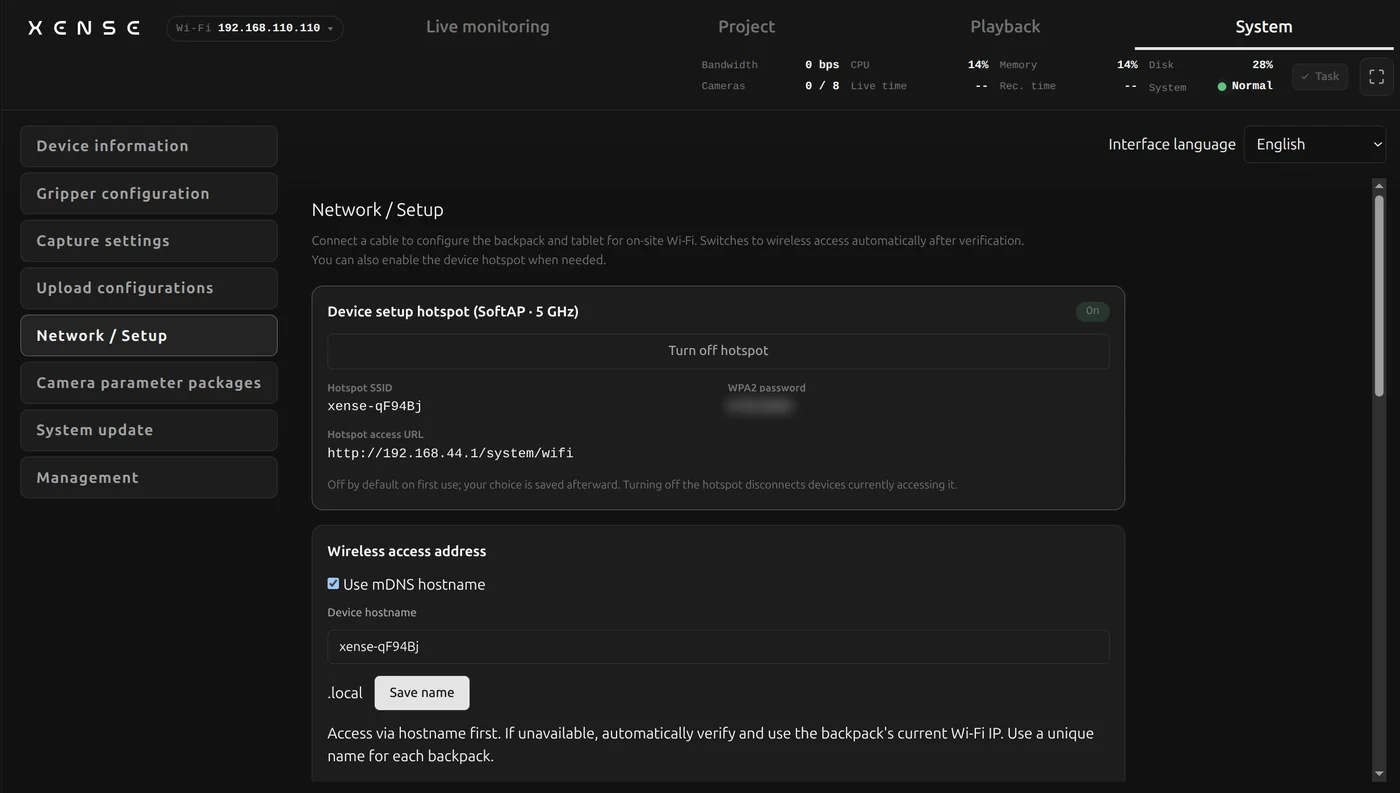
- Plug and play: the bundled tablet is authorized on the production line and works as soon as USB is plugged in.
- Re-authorizing: after a factory reset of the tablet or revoked USB debugging authorization it no longer opens; re-authorize it as in Troubleshooting.
Putting the backpack on Wi-Fi from the tablet
Pick the site's 5GHz Wi-Fi on this page and enter its password: the backpack and the tablet join that network together. Once the backpack is confirmed on the same network, the tablet switches to the backpack's Wi-Fi address automatically and you can unplug the USB cable.
The backpack's network interfaces
| Interface | What it is | Use |
|---|---|---|
| Wired | Ethernet to a router, IP by DHCP, static possible | Labs and fixed workstations; the steadiest bandwidth |
| Wireless | The backpack joins the site's 5GHz Wi-Fi | Several people on the same network |
| Hotspot | The backpack's own 5GHz hotspot, fixed address 192.168.44.1 |
The way in with no tablet and no site network |
The backpack hotspot
Without a tablet, reach the backpack over its hotspot:
- Join the backpack hotspot from a phone, tablet or computer (name and password on the body label).
- Open
http://192.168.44.1in a browser.
On a new unit the hotspot is off at first boot
Use "Turn on hotspot" in System → Network / Setup; the device remembers it. You can reach the console with the tablet over USB first to turn it on. The hotspot is 5GHz only; 2.4GHz-only devices will not see it.
- iOS / Safari: type the full
http://prefix in the address bar. - Several backpacks: check the hotspot name against the body label before joining.
- No network hopping: turn off auto-join for other saved networks so the device does not switch away mid-collection.
Device name
On the same network, use the http://xense-xxxxxx.local on the label's last line instead of remembering an IP. Rename or turn it off in System → Network / Setup.
Note
Windows and some Android phones cannot resolve .local names; use the IP from the network drop-down instead.
Joining a site network
Wired
- Connect the backpack's Ethernet port to a router LAN port and it works; computers on the same router use the wired IP in the network drop-down or the device name.
- Ubuntu computers: turn on the Wired switch in the system settings:
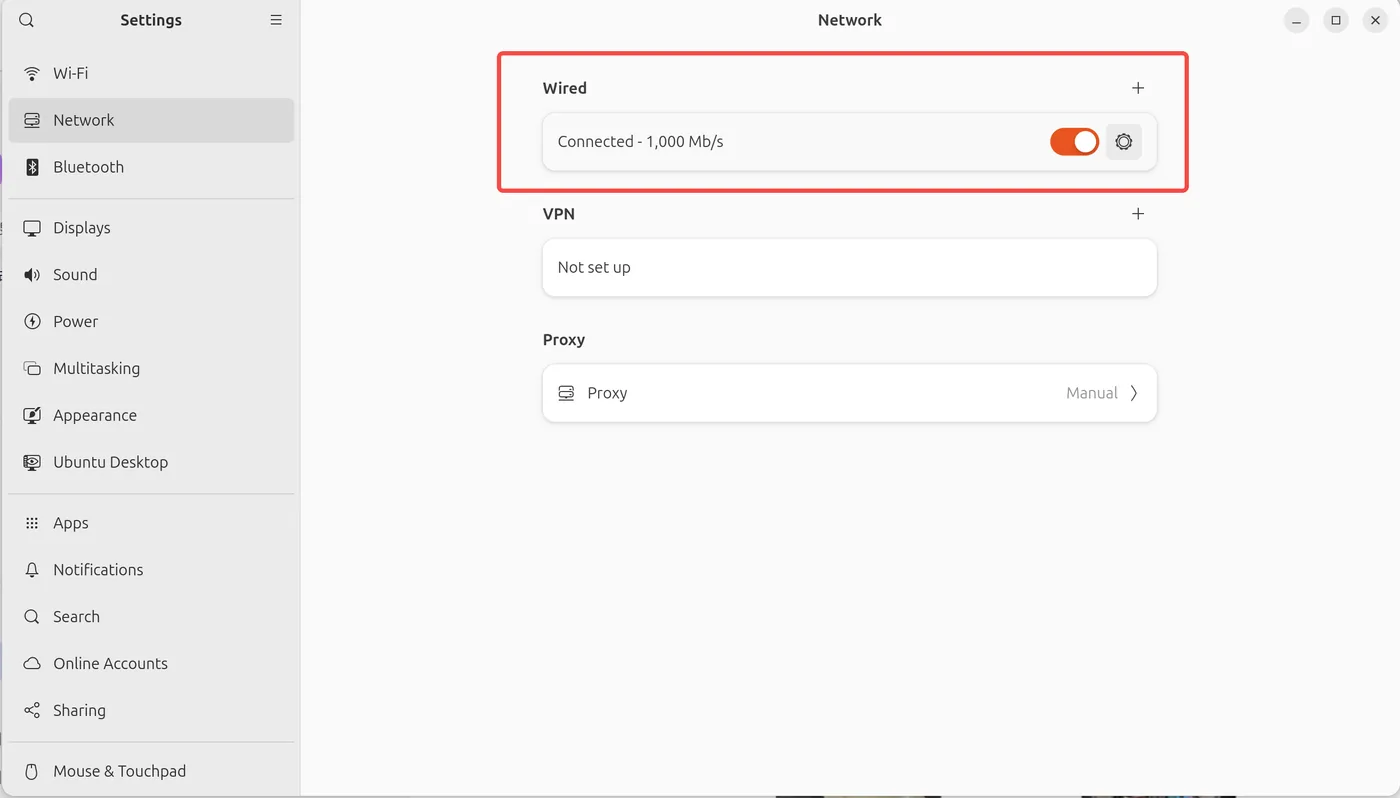
Set a static IP only when there is no DHCP (backpack cabled straight to a computer) or IT requires a fixed address; see System → Wired IP.
Site Wi-Fi
- Easiest: Wi-Fi setup from the tablet over USB, which joins both together.
- Backpack alone: System → Joining site Wi-Fi.
- Band: the backpack only supports 5GHz Wi-Fi.
Checking the current network state
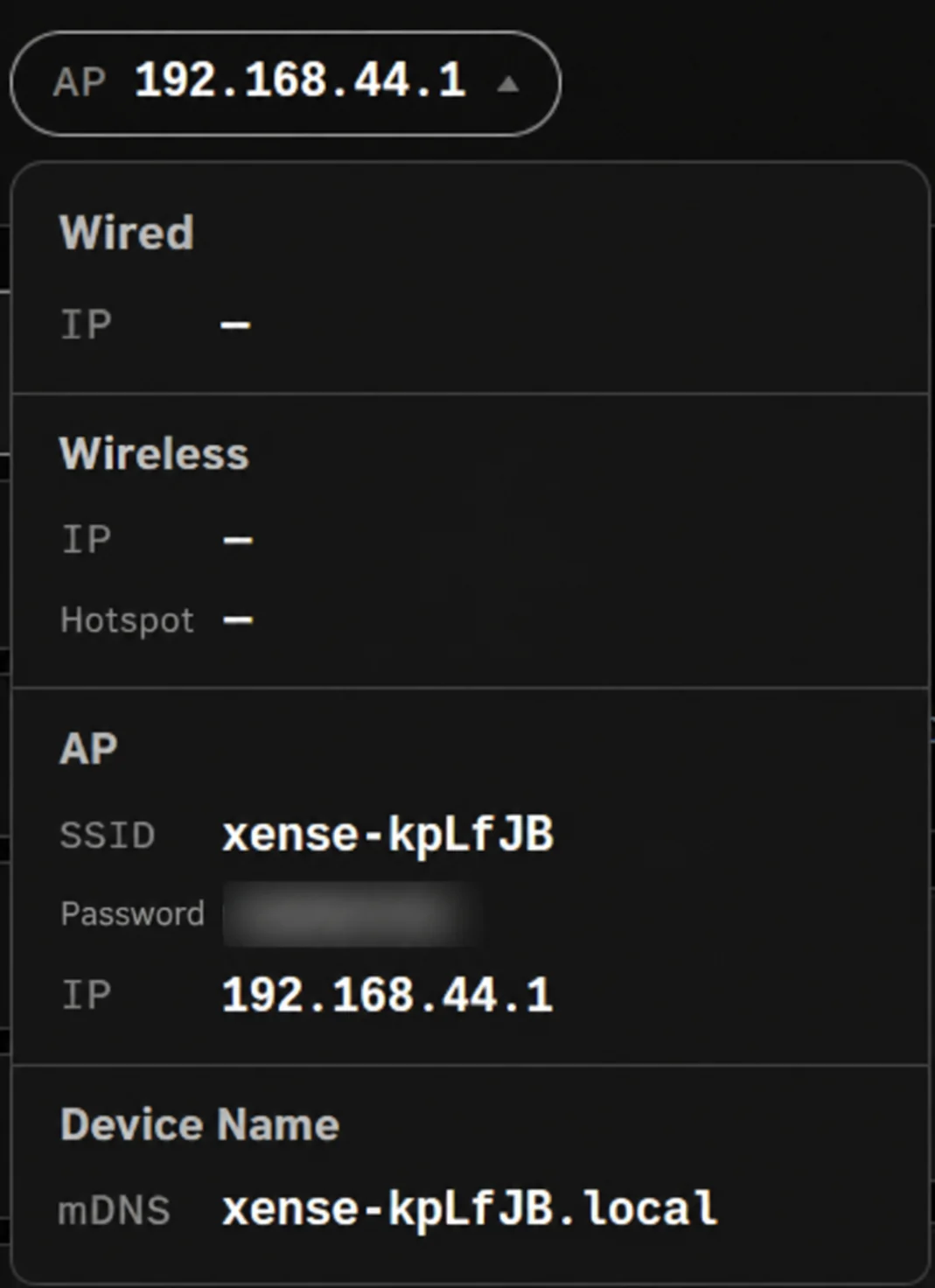
The IP drop-down at the left of the top bar gathers every way into this unit. After a network change, when you are unsure which address to use, look here first.
- Contents: the wired IP, the wireless IP and the hotspot it is joined to, its own hotspot's SSID / password / gateway, and the mDNS device name.
- Collapsed: shows only "the one address you should use to reach it right now", the first available of wired > wireless > hotspot.
- Expanded: click to see all network details.
Choosing a method by scenario
| Scenario | Recommended method |
|---|---|
| Everyday collection with the bundled tablet | Plug the tablet into USB; the backpack opens the console for you |
| Lab or fixed workstation with your own router | Wired to a router LAN port, then use the address in the network drop-down |
| Customer site, uncontrolled network | Tablet over USB, or turn on the hotspot |
| Site has 5GHz Wi-Fi and several people need access | Use the tablet to put the backpack on the site Wi-Fi; PCs on that network reach it directly |
| Backpack wired directly to a laptop, no router | A static IP on the same subnet at each end |
| Nothing works at all | Plug the tablet into USB to check the network; if that fails, see Troubleshooting |
Advanced diagnosis: handled by technical support
The device back end is for technical support diagnosis only
Do not log in to the back end or change the system configuration yourself: the console cannot show those changes, and a bad configuration can lock you out of the device, even through the hotspot.
Day-to-day work happens in the console: addresses in the network drop-down; the wired address, gateway, states such as "Cable disconnected", joining the site Wi-Fi and changing the wired IP are all in System → Network / Setup.
If you have worked through this page and Troubleshooting and still cannot connect, collect the following for technical support:
- The body-label SN, and which way in you used (hotspot / device name / wired IP).
- The addresses in the network drop-down, and the wired state and current internet connection on the System → Network / Setup page.
- A screenshot of the exact error text on screen.